







Select a category

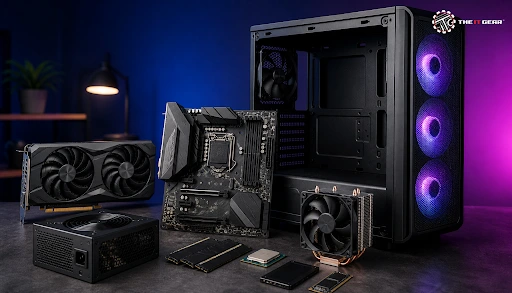
Building your first gaming PC is an adventure, and with good gaming PC parts under your belt, it's quite easy to set up a gaming PC setup in which all your favourite games will run flawlessly without creating a hole in your pocket.
As per the latest stats, the Indian gaming PC market has seen an increase in demand as PC gaming is no longer confined to just smartphones, with first-time builders taking the plunge more than ever, said a report. The gaming space has shifted to PC, and the right gaming PC components are important to have a gaming experience that rival smartphones cannot provide.
All systems at the frontier of gaming solidly consist of a number of fundamental parts that work together like a team. Before we get too deep into specifications, let's take a second to understand the fundamental architecture of all gaming PCs. All gaming PCs consist of several core parts working in coordination with one another, and if one of these parts is missing, you won't get anything.
Here is the complete gaming PC parts list you need:
The Essential Gaming PC Parts List
1. CPU (Central Processing Unit): Most people know it as the brain of your computer, and it does the math your game needs to run. Processors lead the way in single-core performance, so if you want your gaming to be smooth, you want a processor that can do well at these sorts of tasks. AMD Ryzen 5 and Intel Core i5 processors are good options for gamers in India.
2. GPU (Graphics card): Arguably the most important component in a gaming PC for performance and the only part that makes a difference to what you see on screen. This is the heavy lifter that uses a graphics card from Nvidia or AMD to let you game at 1080p or 1440p and those even more demanding 4K resolutions. Select your GPU carefully since this will usually take the lion's share of your budget. For help choosing, see this GPU buying guide for India.
3. Motherboard: The motherboard is the backbone of the system, which connects all the components together. It limits the CPUs and RAM you can use. Focus on finding a motherboard that supports enough PCIe slots, M.2 storage, and USB ports to connect everything.
4. RAM (Random Access Memory): RAM is a buffer for any data that needs to be accessed quickly. Low RAM can result in stuttering and frame drops, but a generous amount of RAM will ensure smooth gameplay. 16 GB is enough RAM for current games, but 32 GB is the way to go now and in the future.
5. Storage (SSD/HDD): Your storage device stores your OS, games, and other files permanently. SSDs can drastically reduce game load times compared to traditional hard drives and are a huge upgrade for gaming builds. Some builders put the OS on a smaller NVMe drive and then use a larger SSD or HDD for games.
6. Power Supply Unit (PSU): The power supply offers consistent power to all components in your system. A wattage-limited or low-grade power supply can fry your costly components or shut down your PC randomly if you play games for several hours. Opt for one from a well-known manufacturer with an 80+ certification.
7. PC Case: Your case contains everything inside of your computer. The way it is designed and the airflow it allows will have a direct impact on the overall temperatures. Make sure your case has good ventilation, so you don't need to see your computer's components reaching thermal throttling limits.
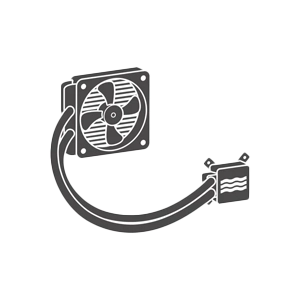
8. CPU Cooler: Some processors come with a free stock cooler, though aftermarket models will run your CPU cooler for better thermals and noise levels. Air coolers are a good choice for budget builds, but liquid coolers are better for enthusiast-class processors. Good CPU coolers will also keep your CPU at boost clocks when gaming for long periods. If you are unsure which to pick, read this AIO coolers vs air coolers guide.
These 8 elements are the basic criteria to understand when a gamer is planning a PC build. Because you can buy PC components online from a reputed shop such as The IT Gear you can be assured of authenticity and warranty support.
Every great build begins with the core gaming PC components. By learning what these components are, you'll be able to budget for them in advance and do plenty of research before you commit to a single one.
This knowledge lets you decide based on importance. If you know what a component adds and why it is so necessary, then you can choose what to spend more money on based on what you need the most from your PC gaming setup in the short and long term.
Why the GPU Matters Most for Gaming
Your graphics card is what will control how high-quality your gaming experience will be, whether that be through the actual resolution or the frame rate or the special effects. Unlike a CPU, which performs many general computational tasks, a GPU was designed with the specific purpose of processing the demanding task of generating complex 3D imagery on the fly. For more on this, see integrated vs dedicated graphics cards.
How the CPU and GPU Work Together
The CPU creates the game data and communicates to the GPU, which generates the visuals you see. If one component is quite a bit weaker than the other, it will form a bottleneck, which will restrict the overall performance. Creating a balance in your CPU and GPU choice helps prevent this.
Understanding how components relate helps beginners avoid mistakes like overspending on the CPU and underspending on the graphics card. Your complete gaming PC build is better and more flexible when you understand the effects and relationships of all the individual components. If you want to avoid common pitfalls, read this guide on avoiding common PC building mistakes.
Component compatibility is a common mistake that people make when building a new PC, it is a good idea to read up on it before buying your parts. Components that are not compatible won't be able to work together and you will be out of pocket.
Key Compatibility Considerations
1. CPU and Motherboard Socket: A processor is always associated with a particular socket, such as LGA1700 for the latest Intel CPU models or AM5 for the Ryzen 7000 series. The socket on your motherboard has to match the CPU’s socket, otherwise, the CPU physically can't be inserted. Always verify this pairing before purchasing either component.
2. RAM Type and Compatibility with Motherboard: Modern motherboards work with DDR4 or DDR5 RAM, there is no option to work with both simultaneously. So your choice of motherboard specification will decide which type of RAM you can purchase. Also, check the maximum supported RAM speed as this can aid game performance.
3. GPU Length and Case Clearance: Many high-end graphics cards, especially in the newer premium series, can be surprisingly long and even reach over 300mm. Look for the maximum GPU clearance on your PC case specifications. Any card which exceeds the specified length cannot be fitted in.
4. PSU Wattage and Connectors: Your power supply needs to have the appropriate wattage to run your components (550W-750W for mid-range gaming PCs) and have the right connectors to power your GPU (such as 8-pin or 12VHPWR etc). A weak power supply could cause hardware failure or your system rebooting randomly.
Compatibility planning may be more time-consuming in the beginning but will save headaches when it comes to putting parts together. When purchasing PC components online, do careful research on specifications, and it might be worth using some online compatibility tools. This relates to the greater theme of how to build a reliable gaming machine.
RAM is the next subject of dispute among gamers and where to. But how much you really need depends on your use case. And you can't necessarily assume that more RAM means better gaming performance, but it definitely can't hurt. For a deeper breakdown, see how much RAM you need for gaming.
1. 8GB RAM: This is now the bare minimum that should be found in a gaming PC; it is starting to be too little for modern games. Many new release titles now recommend 16GB of RAM, and builders have experienced stuttering and long load times when running them on 8GB. Budget builders may want to consider going for a higher amount of RAM.
2. 16GB RAM: Gaming has officially reached a comfortable peak here, essentially capable of handling any and all games without bursting through the limits of your PC while having room to run a bunch of programs in the background. A solid option is this 16GB DDR5 RAM kit.
3. 32GB RAM: This may not be overkill if you also stream, run virtual machines, or play heavily modded games. But, the difference in gaming performance on a gaming rig between 16GB and 32GB is often insignificant. It is better to get 32GB only if your budget permits or you have memory-heavy workflows. If you need higher capacity, consider a 32GB DDR5 RAM kit.
The 32GB debate points to one simple fact: buy what you need, not what you don't. Choosing a lot of extra RAM means having less money to invest in hardware upgrades that actually deliver better gaming performance — components like the graphics card.
Buy in the right order. The order in which you purchase things can have a direct impact on your build timeline and your budget. Buying smart will allow you to buy while the components are on sale while making sure all the parts you buy are compatible with each other.
Recommended Purchase Order for Beginners
1. CPU & Motherboard First: They form your platform, and they must match the existing hardware. Buy them together to be sure you get the correct socket and chipset. Several stores will give you a discount if you purchase these two together. Start with your processor and motherboard.
2. GPU Next: The graphics card is the most expensive individual component in your PC, so buying it early gives you a good idea of how much you have left to spend. GPUs are heavily affected by availability and demand, so prices fluctuate. Keep your eye out for offers.
3. RAM + Storage Pair: If you are building your core platform first, these are the purchases that are less likely to be out of stock and are relatively cheap. If you buy these later, you will be certain of which generation to purchase and the storage amount. Compare RAM and storage options carefully.
4. PSU, Case, and Cooler Last: These are less likely to sell out even if you buy them early, and they also have few compatibility restrictions. Holding off on these allows you to determine the power requirements for the GPU and the rest of the system, and buy so. Also, the case can be purchased at the same time as the GPU/cooler, and be directly determined in size by the cooler. You will need a PSU, a case, and a cooler.
By buying in a logical order, you can also minimize the chance of buying incompatible parts. It spreads the cost out over a period of time giving a more affordable build.
Gather your tools and give yourself plenty of room to work—doing so before you start can save you time, money, and aggravation, not to mention the frustration of finding yourself without the appropriate tool when you need it. A little preparation goes a long way.
What You Need Before You Start
1. Phillips Screwdriver: A lot of PC parts will secure with Phillips-head screws and seem to be a #1 or a #2. Using a screwdriver with a magnetic tip can help access screws in tight places. Never use a power screwdriver, as they tend to strip or break components.
2. Anti-Static Wrist Strap: Static is a primary threat to sensitive electronic components. Use an anti-static wrist strap and ground yourself before touching components or regularly touch a grounded metal object before handling.
3. Small Container for Screws: Use a small bowl or magnetic tray for all of the tiny screws that screw the motherboard and case. This can save you from losing hours of time fishing them out of obscure corners.
4. Clean, Well-Lit Work Surface: Build your PC on a table, not a carpet, which can produce static. Well-lit areas allow you to identify small connectors and alignment indicators. A clean work area also helps you avoid having parts tumble to the floor.
The right preparation converts the build from a stressful mess to a fun process. This little bit of investment in tools and setup will give your gaming PC components a leg up and help with an easier build.
Once your PC is built, there are still a handful of things you will need to do before you can hit the gaming world. Once all these steps are understood, that defines the last steps of the beginner journey.
Software Installation and Optimisation
1. Operating System: Windows 11 is the most common choice for gaming PCs due to game compatibility and updates. To install Windows 11, insert a USB drive to install the file from Microsoft's website, and follow the instructions.
2. Driver Installation: Update the graphics, chipset, and other component drivers after OS installation. The primary reason for releasing graphics drivers is game performance improvement. Most chip manufacturers offer a simple driver-updating utility.
3. BIOS Configuration: Log into your motherboard BIOS and enable the XMP or EXPO profiles for your RAM. This will ensure your RAM runs at the rated speed and not the default of 2133 MHz. If you are new to building a PC, there are single-click optimization options on some BIOS. Learn more in this guide to understanding RAM types and functions.
Long-Term Upgrades
Long term, there are several PC upgrades, which can be made to extend the life of your PC. These include increasing the amount of RAM, swapping the GPU, or going for more modern storage. Such upgrades are crucial when games begin to become increasingly demanding.

Here is a quick summary to guide your component selection:
1. Identify your budget and target gaming resolution.
2. Choose a CPU and matching motherboard socket.
3. Select a GPU that fits your performance goals and case.
4. Pick 16GB RAM for most gaming needs.
5. Include an SSD for fast loading times.
6. Choose a PSU with adequate wattage and certification.
7. Select a well-ventilated case with sufficient clearance.
8. Add a CPU cooler for better thermal management.
Building a gaming PC is a very exciting experience. It's a great opportunity to build your own performance and look exactly how you want it to. Now that you have this gaming PC parts buying guide, you have the perfect info to help you.
Buying PC components online from The IT Gear gives you access to a comprehensive list of the best gaming PC parts from online shopping for a father and son gaming gift to a gift for the gaming enthusiast. We have a collection of gaming PC parts from the best online shopping brands with the warranty on the original box and delivery across India.
What PC Does Elon Musk Use?
As for his own special gaming rig, there isn't actually all that much documentation of this online yet. Elon Musk has said that he's used all sorts of different systems, but for beginners, it becomes more important to realize that even celebrities are using the PCs that are built from the basic components available to everyone else. Build to suit.
Can You Provide a Beginner Guide to Building a Gaming PC?
Definitely. When you build a gaming PC, there are 3 phases: choosing the right parts, assembling them, and installing the software. Choose your CPU and motherboard first, then add the GPU, RAM, storage, PSU, case, and cooling. Use tutorials to assemble, and don't forget: knowledge is power.
Do I Need a CPU Cooler That Comes with a Processor?
Most processors come with a stock cooler that can be used for general gaming needs. But, cooling performances and quietness of an aftermarket cooler cannot be matched by stock cooler manufacturers. If you want better temperatures and lower noise levels during long gaming sessions you should get an aftermarket CPU cooler. For a comparison, see air vs liquid cooling for gaming PCs.
How Often Should I Upgrade My Gaming PC Components?
How you upgrade your systems depends on your performance requirements and your budget. Today, GPUs should be replaced every 3 to 4 years as new games come into the market, while CPUs can be used for a solid 5 to 6 years. You can upgrade RAM and storage anytime if you need more capacity.





#No. 9, 5th Floor, Max City Center, T. P Lane, Sadar Patrappa Road, Bengaluru - 560002 (Karnataka)