




Select a category

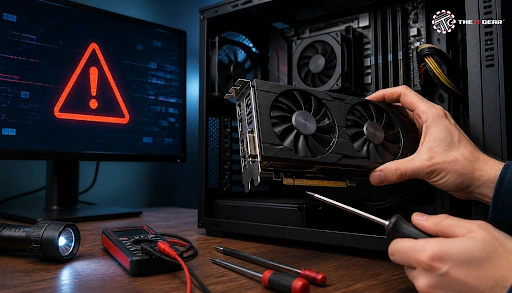
Your PC starts up, the fans whir to life, but the monitor stubbornly remains blank. Don't jump to conclusions; it's most likely nothing serious like a dead graphics card. The problem will usually be something trivial like a headphone cable, a faulty driver, or even selecting the wrong input source.
Using a sensible graphics card troubleshooting method can prevent you from wasting money on a new card by ruling out each of these problems one by one. This is how to do just that.
Graphics card troubleshooting is the systematic approach to determine if issues with the display are caused by software, cables, power delivery, or the graphics card hardware itself. Skilled technicians do not start by simply removing and replacing things; instead, they exclude cables, the monitors, and drivers first, then test temperatures, the power supply, and PCIe seating. This workflow allows fixing most graphics card issues, even a "dead" GPU that only needed a clean driver reinstall or a properly secured power plug.
A lot of the time, a working graphics card will run perfectly fine in Windows, and then fail when actually playing a game or rendering video. This is because the power draw and thermals are far higher when playing games than during everyday tasks. This explains why a card may pass normal testing, yet not survive under a heavy load.
The quickest method to see if you've got a dead graphics card is to start with the least expensive, easiest fixes and work your way to the more complicated ones. Follow the steps below and stop when the problem disappears.
Step 1: Restart the Graphics Driver With a Keyboard Shortcut
Press Windows key + Ctrl + Shift + B all at once. This quickly resets the display driver and can save you from a full reboot in many cases of a black screen. If there is no effect, then reboot your PC and turn the monitor off and on again, eliminating the possibility of a power-state error.
Step 2: Check Cables, Ports, and the Monitor Input Source
A damaged HDMI or DisplayPort cable can resemble a dead GPU with alarming accuracy. Replace the cable, test another output port on the card, and if possible, connect a second monitor. Also, make sure the monitor has been put onto the correct input source because many "no signal" notifications are simply due to the monitor being put onto the wrong input.
Step 3: Reseat the Graphics Card and Check All Power Connections
Shut down the PC completely, disconnect power, and then firmly seat the GPU back into its PCIe slot until the retention clip snaps. Double-check that each of the 6-pin or 8-pin PCIe power connectors is securely fastened. A card that's only partly inserted or a disconnected power cable is a frequent source of fans running with no picture shown on the monitor.
Step 4: Uninstall the Graphics Driver and Install It Cleanly, or Roll It Back
Start the computer in Safe Mode. Use DDU to completely remove old NVIDIA or AMD drivers. Install the new drivers downloaded from the manufacturer's website. It is extremely common for an update to NVIDIA or AMD drivers to immediately cause crashes. Often, simply installing an older version will fix the issue instantly.
Step 5: Load Test the GPU and Observe Temperatures and Power
Monitor a card's internal and external temperatures during benchmarking using either GPU-Z or MSI Afterburner. In most cases, if a computer's graphics unit crashes only when it's under a very heavy but constant workload, this could be due to overheating or insufficient power supply through the power cables.
So dust off your computer's interior and fans, replace the thermal compound if this was one of the things you noticed that might have gone wrong, and if everything else still looks fine, then maybe, just perhaps, you have an old card on your hands. Either way, you probably should try out the card on a different computer in order at least to be absolutely sure whether any hardware-related problems exist that are not related to the computer that you were just using.
These two complaints account for most troubleshooting requests on PC forums, so they deserve special attention.
Why Is My Graphics Card Not Detected in Windows or BIOS?
If you have the Microsoft Basic Display Adapter instead of your NVIDIA or AMD graphics card, or the card isn't present in the Device Manager, see if your monitor is connected to the motherboard's display output rather than your graphics card.
Look at the Device Manager, and if it has a yellow warning or error code 43, that is indicative of corrupt drivers or hardware enumeration failure. The graphics card can be tried in another PCIe slot also to get the motherboard to recognize it again, or you can clear the CMOS.
GPU Fans Spin But No Display – What Does That Mean?
Fan spin merely indicates the card is getting some power; not necessarily that the GPU core is powering up correctly. Reseat the card, double-check that both power connections are fully seated and locked, reset the CMOS, and try booting with just one RAM module. If the same issue persists, the card may have a failed VRM/VRAM power phase and might need to be repaired professionally or RMA'd.
Understanding how to spot early graphics card faults will prevent sudden data loss and allow you to plan a repair before the card fails completely.
The primary three causes of graphics cards dying are thermal degradation, electrical stress, and physical wear.
A genuinely broken graphics card is almost always irreparable by software hacks alone. An early-failing card can often be temporarily stabilized by undervolting and underclocking the GPU and its VRAM, giving you time to back up your data.
However, if the card's artifacts show on the BIOS screen or in another machine, the card has physically damaged VRAM or power delivery that calls for professional microsoldering repair. If the card is still under warranty, contact the manufacturer for an RMA instead of attempting risky board-level repairs at home.

Much of graphics card troubleshooting involves taking the easiest factors out first and not assuming the graphics card itself is to blame. In most cases, a fresh driver installation, reseating the graphics card, or replacing a cable will solve it in a matter of minutes.
If you do find that your graphics card really has been damaged or you want to upgrade, please look at The IT Gear, where we have a range of genuine graphics cards, power supplies, and PC components from top brands.
How to Fix Graphics Card Issues on a Laptop?
Laptop GPUs are often permanently fixed to the motherboard and are not modular like a desktop graphics card. Begin by updating your graphics driver using the graphics card manufacturer's software, cleaning the internal vents to prevent overheating, and then testing on an external monitor to isolate the problem (either the graphics card or the display panel).
How to Troubleshoot a Graphics Card in Windows 11?
Windows 11 users should run the built-in Display troubleshooter, check that the driver supports the required WDDM version, and disable hardware-accelerated GPU scheduling if glitches appear. The Event Viewer under Windows Logs also records display driver failures that help pinpoint the cause.
How Can I Tell if My GPU Is Broken Beyond Repair?
Signs of permanent GPU failure include persistent artifacts on the BIOS screen, a burning smell, visibly damaged capacitors, and no display output even after testing the card in a different PC. At that stage, component-level repair is rarely cost-effective, and replacement is the smarter option.
Why Is My Graphic Card Not Detected After a New Build?
Mainboard problems during a new build are mostly due to the monitor cable being connected to the motherboard, an improper PCIe power connector, or an outdated BIOS. To fix this issue, remove and re-insert the graphics card properly, reattach the monitor cable to the video card, and also change or update BIOS settings so that the correct PCIe mode is enabled.





#No. 9, 5th Floor, Max City Center, T. P Lane, Sadar Patrappa Road, Bengaluru - 560002 (Karnataka)