






Select a category

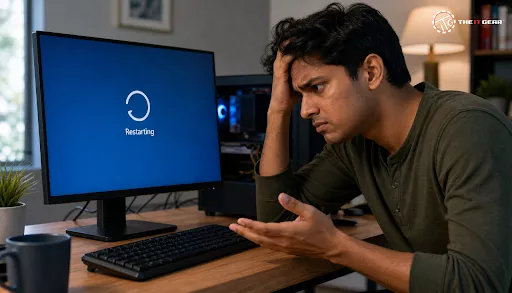
Are you in a situation where your PC suddenly shuts down and restarts without any warning, causing a loss of work and a lot of frustration? This is not an alien problem in India, mostly with the increased usage of PCs for work-from-home, online schooling, gaming, and other purposes.
Getting a restart without any reason is not only a waste of time but it can also lead to loss of data and file corruption. Let’s work together towards understanding the root cause of this issue and fixing it properly. This article is aimed at discussing the major reasons for random restarts and taking you through fixing the same.
A system rebooting at random intervals really implies that your machine is either trying to shield itself or reacting to a situation that it considers extremely serious. In fact, it can be thought of as one of the safety features.
Basically, the computer identifies a problem and starts a reboot to avert any longer-term damage to elements, for instance, the CPU or the motherboard that can be affected by excessive temperature or power supply. And, it's completely different from the normal shutdown when a computer is manually turned off by the user. It could be a complete restart during which you will see your computer going black and coming back up again or a situation where your power gets cut off totally and you see an immediate reboot.
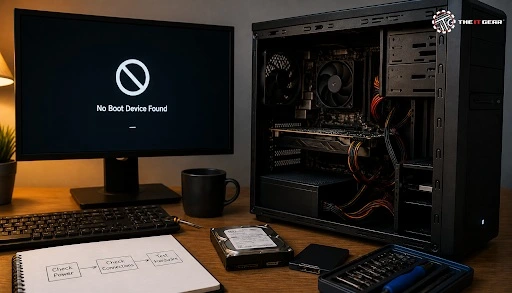
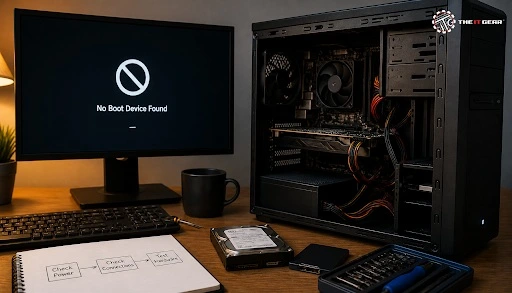
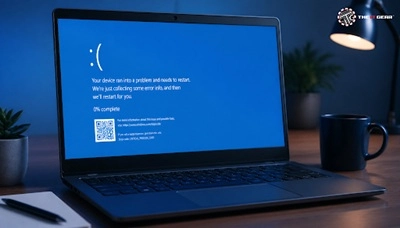
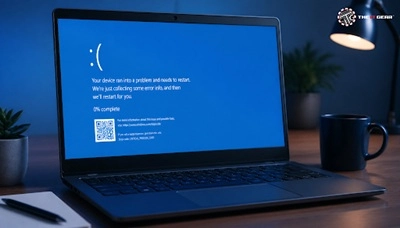
Sometimes, in the worst scenario, you might even get a boot loop which means that your PC restarts every few seconds and does not even get to the Windows login screen. A missing Blue Screen of Death (BSOD) usually makes the problem more difficult to diagnose and that is why the hardware errors get more exposure compared to software ones.
Random reboots can be caused by any number of problems, from minor software glitches to serious hardware failures. These are the main reasons that you should check out.
Overheating and Thermal Shutdown

The most common reason why your PC would go through a restart cycle on its own is overheating. The motherboard decides to give the command for a thermal shutdown when the temperature of the CPU or the GPU is too high, so that there is no permanent damage. This is mostly true in India where summers can be quite hot and people like to stay in poorly ventilated rooms.
Faulty Power Supply Unit (PSU)
Random PC reboot without any apparent reason is among the well-known signs of a broken or substandard Power Supply Unit (PSU). A PSU cannot be capable of supplying stable power so making the system crash and restart.
Bad RAM (Random Access Memory)
Corrupt or failing RAM will probably be the reason for the system going unstable which can be random freezes, crashes, or reboots. This is a straight reply to the frequently asked question, "Can bad RAM cause restarts?" The answer is a definite yes.
Driver Conflicts and Corrupt Files
Device drivers that are out-of-date, damaged, or incompatible, most especially the drivers for the graphics card (GPU), can be the reason behind your computer restarting periodically without any notice. This is a problem related to software that is frequently resolved without any need for hardware replacement.
Issues with Windows Updates
A computer randomly rebooting may be caused by a Windows update that is not working properly or has been installed only partially. Maybe an update enters a continuous loop or contains a bug that leads to system instability.
Malware and Virus Infections
Infections with viruses or malware can mean the disruption of essential system processes, so the computer may crash and restart automatically as a symptom of the infection. Hardware problems are a more usual cause, but this possibility should not be overlooked.
A systematic approach is what you need, when your PC keeps restarting. Follow these steps to get to the bottom of the cause.
Check Windows Event Viewer
The Event Viewer keeps a record of system events including errors and restarts. This should be your first line of investigation if you want to find a specific error code.
1. Press `Windows Key + X` and choose "Event Viewer."
2. Open "Windows Logs" and then "System."
3. Search for events of "Critical" level that have "Kernel-Power" as source (Event ID 41). This event means that the computer was shut down unexpectedly.
4. To identify the particular cause (for example, a driver failure), check the error events that took place immediately before the Kernel-Power event.
Disable Automatic Restart
After encountering a system failure, Windows is set to restart automatically by default. If you disable this option, then you will be able to see the error message or Blue Screen of Death, which are indispensable for diagnosis.
1. Right-click the "This PC" icon and choose "Properties."
2. Navigate to "Advanced system settings."
3. Find "Startup and Recovery," then click "Settings."
4. Remove the check mark from the "Automatically restart" item.
5. When next, your PC crashes, instead of restarting, a blue screen with an error code will show up.
Perform a Stress Test
In case, you want to leave the blame solely for hardware, then running a stress test is the way to go. If your PC manages to finish the stress test without any problem, then it's probably a software issue you'll have to deal with.
A reboot loop is an extreme version of the problem where your PC keeps restarting even before you get a chance to use it. Here's how to get rid of that loop.
Here's a quick reference guide to assist you in the identification and rectification of the problem of PC random restarts.
1. Overheating: Dust your PC, arrange for better ventilation, and monitor CPU/GPU temperatures.
2. Failing PSU: Notice if there are strange sounds or a burning smell and get it tested by a professional if needed.
3. Bad RAM: Use Windows Memory Diagnostic tool or try each RAM stick one by one.
4. Driver Issues: Update or uninstall the problematic drivers, in particular the graphics card ones. Operating in Safe Mode will help you with this step.
5. Windows Updates: Remove most recent updates or use System Restore function.
6. Malware: Carry out a complete system anti-virus scan using the latest free or paid software.
The problem of a PC that restarts on its own can be a source of frustration but if you start with a logical sequence of steps, you'll be able to handle it eventually. After eliminating common ones like overheating and power supply issues, you might not even have to spend money. Checking system temperatures, hardware testing, and reviewing software settings form the trifecta of a working approach to this problem.
If you are not confident about opening your PC or component testing then kindly reach out to your trusted local technician. Buying parts like a PSU, RAM, or cooling fans from The IT Gear will be a great decision for you, if at all you need to upgrade or replace any components. They stock a whole host of quality parts to help you stabilize and enjoy your system.
Is it normal for my PC to automatically restart for updates?
Yes, it is normal for your PC to restart on its own after the installation of Windows Updates. This planned restart is the way the system applies the update changes. But, restarts that are frequent and random outside of the update cycles are, in fact, not usual.
Why does my PC randomly restart when playing games like Valorant?
Most of the time, this is caused by the GPU and PSU being put under heavy load. The temperature of your graphics card is going up or the power supply is not quite strong enough to keep up with the demands of the game. The game itself might have other issues too like it might not be working together with the anti-cheat system (for example, Vanguard in Valorant) which could be a cause as well.
My PC randomly restarts but there is no overheating. What may be the cause?
Once the overheating has been ruled out, the next most likely causes will be either a Power Supply Unit (PSU) that is failing or faulty RAM. A PSU is capable of failing so silently that it leads to random restarts without being accompanied by other symptoms. A memory test is a good idea to see if your RAM is okay.
Why does my PC keep restarting in a loop every 5 seconds?
This type of boot loop pretty much always points to a major hardware failure. The top three causes that we see are the PSU that has died or is failing, a short circuit on the motherboard, or a very hot CPU. Besides these, it could be the result of a corrupted BIOS.
How can I stop my PC from restarting randomly on Windows 11?
It is best that you start with the diagnostic steps in this guide. Look up the Event Viewer for error codes, turn off the feature that restarts your PC automatically to be able to witness a BSOD, do a stress test, and check for drivers update and Windows update.





#No. 9, 5th Floor, Max City Center, T. P Lane, Sadar Patrappa Road, Bengaluru - 560002 (Karnataka)






Looks like you haven't added anything yet. Explore our builds, components and gear.
Continue shopping