


Select a category

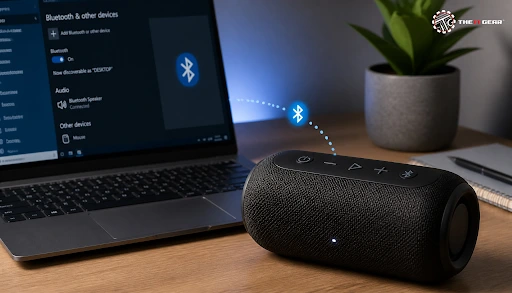
To get maximum enjoyment from your Bluetooth speaker on PC, you should get used to pairing procedures, which might be different for a desktop or a laptop, or even given the Windows version you're running. If the Bluetooth speaker is paired with your device properly, it doesn't matter if it was paired via mouse or keyboard or just automatically. If your setup was done correctly you should have your device connected to the sound from your speaker.
It would be good to mention that some of the users might find that their computer isn't recognizing the Bluetooth speaker. That usually means you will need to make sure your Bluetooth is turned on, speaker is in pairing mode and that Bluetooth feature is enabled in the operating system itself.
Sometimes, drivers are out of date that could also cause the connection issue. On Mac OS, the steps might look quite the same but with some differences in naming or location of the settings that the user might be interested to know. This guide should make it as simple as possible for you to understand and get all your devices connected through Bluetooth and enjoy sound without wires.
Using a Bluetooth speaker with a PC is a wireless pairing process in which your computer's Bluetooth radio discovers the speaker over a short-range signal and establishes an audio link.
When the name of your speaker appears in the "New devices" list, you need to wait for a while. After the name has been displayed there, click it. The pairing will be complete as soon as you hear a confirmation tone.
Before you begin, charge the speaker or connect it to power, and keep it within 1 metre of the PC during pairing for the most stable connection. For those looking to upgrade their entire audio experience, exploring our range of speakers can be a great starting point.
Here, we'll take a look at how you can connect a Bluetooth speaker to your Windows computer, macOS.
Enable Bluetooth on Your PC
macOS users can go to System Settings → Bluetooth to pair their speakers. If it's an old version, it will be under System Preferences instead. Bluetooth has to be turned on and the speaker put into pairing mode. Then find its name and click Connect. Once connected, the speaker will come up as one of the audio output options in the sound settings.
Put Your Speaker in Pairing Mode
Press and hold the Bluetooth or power button on the speaker until the LED flashes rapidly. This puts the device into discoverable mode so your PC can detect it during the scan.
Add the Bluetooth Device
In Bluetooth settings, click Add device, then choose Bluetooth. Wait for your speaker's name to appear in the "New devices" list and click it. The pairing completes with a confirmation tone.
This section lists other ways you can connect your speaker to a computer that does not have a Bluetooth chip built-in. All of these are practical and easy-to-use solutions. If your speakers don't have Bluetooth, can you still hook them up to your computer?
How to Connect Speakers Directly to PC?
First off, the easiest and the straight away way to connect the speakers would be through the 3.5mm aux input that's usually located on the back of the speakers. To make the sound from your computer speaker work, first and foremost, make sure to plug in the male part of the aux cable into the port located on your speaker that is usually called a headphone port - which is green.
Then take the other end of this small cord and put it into the audio socket in your computer, which also looks like just a round grey port or something similar. The result is that the speaker now comes onto Sound settings as a sound output device. It's as simple as that, really.
Use a USB Bluetooth Adapter
The second option of connecting wireless speakers is with the help of a USB Bluetooth adapter. Basically, such things are USB Bluetooth dongles that give you Bluetooth support via your PC. The ideal is a Bluetooth 5.0 model because of its extended range and fast speeds.
After purchasing a Bluetooth device, the first thing to do is plugging it into a free USB port so the Bluetooth driver is able to be installed by the device's OS which is Windows. Then, proceed to do the standard pairing procedures outlined previously.
How to Connect Bluetooth Speaker to PC with USB Cable
If a Bluetooth speaker supports a USB audio connection, you can plug the speaker into your computer via a standard cable and without pairing or doing other stuff, and it will be recognized immediately by the computer as a USB audio device.
It is simply a plug-in play, right? So after doing so, all you need is to just select that speaker as your system audio device in your Sound Settings.
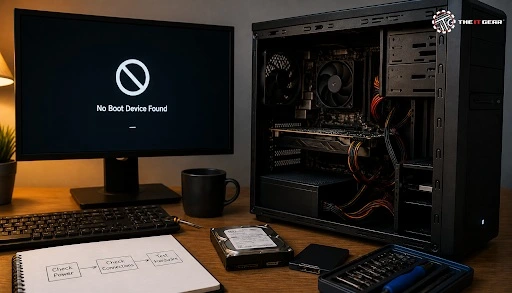
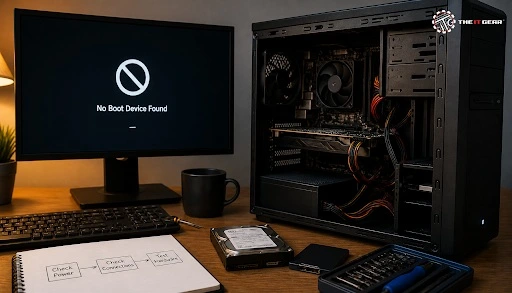
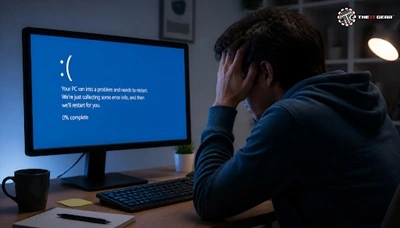
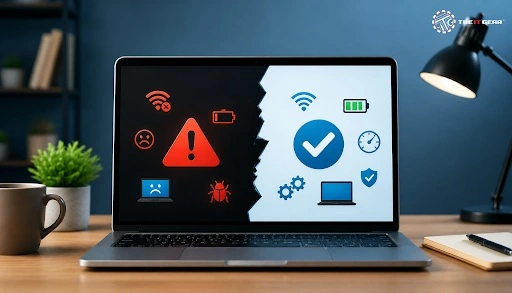
Where to look for a reason when your PC fails to recognize a Bluetooth speaker? There must be something about Bluetooth that has gone wrong because of drivers, Bluetooth pairing mode, distance or interference. It is most likely that one of the following was the problem:
Check Your Bluetooth Drivers and Adapter
Determine whether you have an updated Bluetooth Driver and Adapter. Besides checking your hardware, you should also check your software as it's a crucial component of the whole Bluetooth ecosystem.
If you are a Windows user, you can go to your device manager and then to Bluetooth. If Bluetooth's icon is yellow (e.g. like a warning icon) on a Bluetooth adapter, then there might be a problem with the drivers of the adapter.
If this is your case, right-click it and update the drivers. Most times, a lack of recognition by a computer of a Bluetooth device is just down to out-of-date or broken drivers for Bluetooth.
Verify Pairing Mode and Proximity
Check That the Speaker Is in Pairing Mode and It's Close Enough. Check if the LEDs of the speaker are changing as a sign that the pairing mode is on. The best Bluetooth range is just under a meter between two Bluetooth-enabled Bluetooth devices.
To be on the safe side, it would probably be best if you put the Bluetooth device about one meter apart from the PC Bluetooth receiver. In most cases, after the restart, it is just the pairing that has gone wrong. Because of this, a restart would probably help to solve this.
Now that your speaker has been paired, Windows will probably automatically select your speaker as the default playback device. If you haven't noticed any change, check your volume icon on the bottom-right corner of your screen for a pop-up menu that should show you all the output options available on your system.
If not, try opening your speaker properties and then Sound settings, and there you should see the speaker as an output device. If not, head to your speaker's properties, open the Sound tab, then check under Playback which device has been selected, it could be different from your default device. For a broader selection of audio gear to enhance your setup, check out our collection of speakers and audio accessories.

Bluetooth speakers are budget-friendly additions to most PC setups. As long as you have the pairing routine and the common issues figured out, connecting a speaker without wires will become an easy task done within one minute.
At The IT Gear, we carry a huge variety of Bluetooth speakers, USB Bluetooth adapters, and audio accessories to cover all possible demands. Feel free to search the products and elevate your PC audio experience today.
Q1: Can I use Bluetooth speakers for my PC?
Yes, Actually. You can use a Bluetooth speaker with any computer that has Bluetooth either built-in or added via a USB adapter. These speakers work for various tasks such as music calls, videos, and games.
Q2: How do I connect Bluetooth to a PC on Windows 7?
Access Control Panel → Devices and Printers → Add a device. Make the speaker in pairing mode, then select it from the list. If needed, Bluetooth can be brought alive via Device Manager.
Q3: How to connect PC to Bluetooth speaker Windows 11?
Browse through Settings → Bluetooth & devices, turn Bluetooth on, get the speaker into pairing mode, click Add device → Bluetooth, and then select your speaker.
Q4: Why won't my PC find my Bluetooth speaker?
Verify the pairing mode of the speaker. Make sure a Bluetooth connection has been made, your device drivers are up-to-date, and a close distance has been maintained between the devices. Restart both devices in case the problem still exists.
Q5: How do I connect a Bluetooth speaker to a PC without Bluetooth?
Wirelessly connect the PC Bluetooth via a USB Bluetooth adapter. Alternatively, you can use aux cable or USB cable for physical connection.





#No. 9, 5th Floor, Max City Center, T. P Lane, Sadar Patrappa Road, Bengaluru - 560002 (Karnataka)