






Select a category

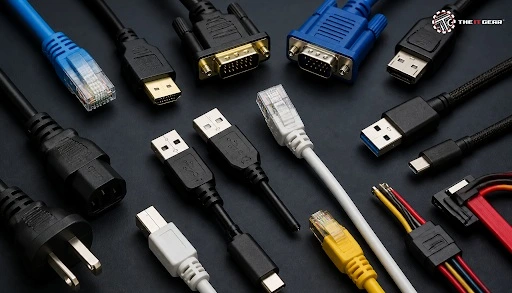
Look behind any desktop in an Indian home or office, and you will find a small cluster of computer connection cables doing the essential work: connecting the monitor, the router, the printer, and the UPS. While wireless is convenient, it has not replaced wired connections.
A Cat6 Ethernet cable still brings a stable gigabit link up to 100 metres, USB4 now delivers up to 40 Gbps through a single reversible connector, and HDMI transmits both video and audio on one cable. This guide explores the different types of computer cables by category, explains the function of each, and helps you identify the cable you are holding.
A computer cable is the physical transmission medium linking two ports — it brings data, electric power, or both. What truly establishes compatibility is not the cable but the connector attached at the end, which can only connect to a port with a matching shape and pin configuration. That one simple guideline is why the same copper cable can work well in one machine and fail miserably in another.
These six connectors will accommodate almost all the equipment you will connect at home or in an office.
1. USB Type-A — The original host-side port on most computers and hubs, and the host-side plug on most cables. This is not a reversible connector, which can only plug in one orientation.
2. USB Type-C — A tiny flattened oval that can be plugged in either way. It transfers data and Power Delivery up to 240 W.
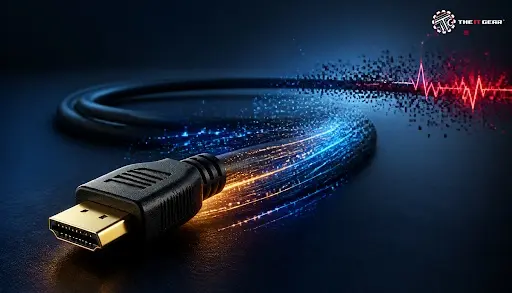
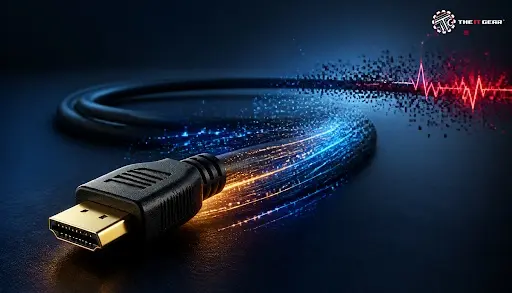
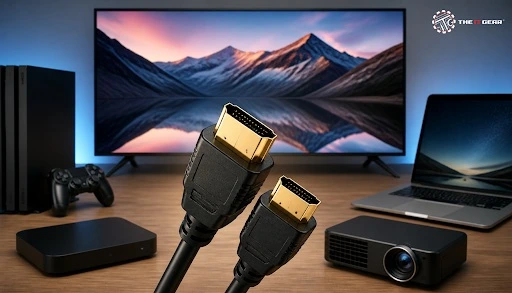
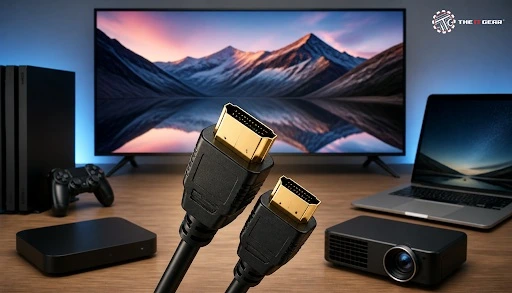
3. HDMI – A 19-pin lead that carries digital video and audio. It is the usual default lead for a monitor, TV and projector.
4. RJ-45 Ethernet — An 8 pin clip connector used on Cat5e, Cat6, and Cat6a network cables. The clip locks it into the port.
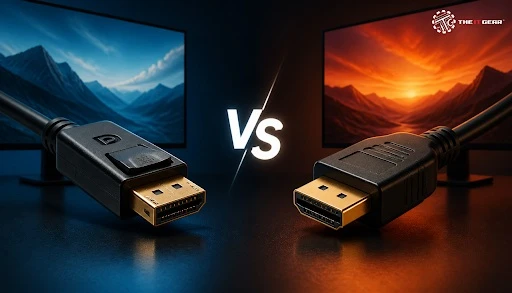
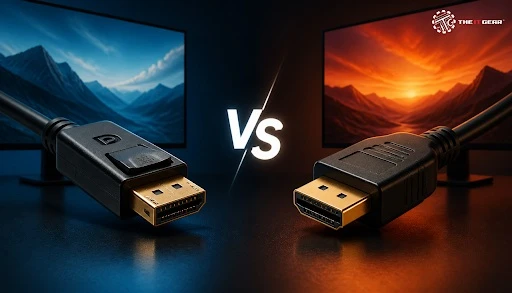
5. DisplayPort – A 20-pin latching connector, designed for high refresh rates and daisy-chain monitor connections. Press the tab to disengage the latch.
6. 3.5 mm audio jack – A TRS or TRRS headphone, microphone, and speaker plug, the next ring on TRRS is for mic signal.
As this search is to some extent visual, most quickly you can find a cable by its shape of connector, number of pins and the numbering and colouring convention used rather than reading any description label. Store this table as your reference cheat sheet below.
Networking remains the one field where the choice of cable directly affects measured performance, not just convenience. Three types of media are predominant.
1. Copper Ethernet (Cat5e to Cat8) — 1 Gbps to 100 meters for Cat5e, 10 Gbps to approximately 55 meters for Cat6, 10 Gbps to 100 meters for Cat6a.
2. Fibre optic — Single mode over longer distances and multimode OM3/OM4 on campus and in the building. Glass strand terminated with LC and SC connectors.
3. Coaxial — RG-6 cable with F-connectors; still the standard for broadband, DTH, and CCTV installs.
The cable connecting the CPU cabinet to the monitor is a video cable — HDMI or DisplayPort on almost every machine sold today, and VGA or DVI on older office desktops and projectors. HDMI also carries audio, while DisplayPort is the better choice for 144 Hz and higher. If the cabinet and monitor have mismatched ports, a passive adapter like HDMI-to-VGA or USB-C-to-DisplayPort can do the trick.
Without the logos, every cable accomplishes one of two things: moves data or moves power. Don't forget that divide makes your purchase much easier.
1. Data cables — USB, HDMI, DisplayPort, Ethernet, and Thunderbolt transmit information between devices. The connector determines the standard, so an USB 2.0 cable plugged into an USB 3.2 port will operate at the slower USB 2.0 speed.
2. Power cords — Computer power cords (IEC C13 into a C14 socket), the cloverleaf C5 (laptop bricks), figure-8 C7 (small adapters), and C19 (servers). Match wattage and earthing, rather than brand.
Three checks solve nearly every wrong purchase: match the port, match the version, match the length.
A cable rated for the bandwidth your display or drive needs will typically be as cheap as a slow one, so there's no harm in not penny pinching.
The key to the best choice is identifying, which family the cable belongs to, recognising it by the connector and matching the version to the device. Buy what you really need and for most of your connection, issues go away.
The IT Gear offers a range of certified HDMI, DisplayPort, USB, Ethernet, and power cables in regular lengths with specifications that make finding the right cable easy.
Are expensive HDMI cables worth it?
Almost never. Any certified HDMI 2.0 cable should be able to handle 4K at 60Hz for a few feet, regardless of cost. So spending a few thousand rupees won't improve the picture.
Can I plug a Cat6 cable into a Cat5e port?
Yes. RJ-45 is compatible, but it will run at the slower of the two ratings.
Do I need a separate power cable for my monitor?
yes, as long as it's not USB-C. All monitors use an IEC C13 or C5 cable that comes in the box.





#No. 9, 5th Floor, Max City Center, T. P Lane, Sadar Patrappa Road, Bengaluru - 560002 (Karnataka)






Looks like you haven't added anything yet. Explore our builds, components and gear.
Continue shopping