







Select a category

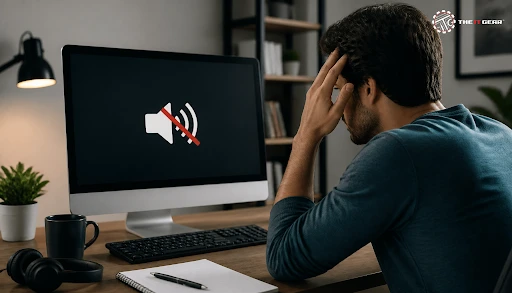
You’re halfway through a client call and suddenly the audio vanishes — no error box, no warning chime. The bad news is that sudden “no sound” on a PC is almost never a dead speaker. If basic checks don’t bring it back, a professional computer repair service from The IT Gear can diagnose whether the fault is driver-, port-, or hardware-related. As Microsoft’s own audio diagnostics literature suggests, there are usually only four things in the way: the wrong output device, muted volume, an unnecessary audio enhancement, or a corrupt audio driver.
A hiccup indicates change, not fatigue. Windows maintains an ongoing list of playback devices and deftly hands off audio to whichever one it judges to be the app’s current choice — an HDMI screen you recently plugged in, Bluetooth earbuds that reconnected in your pocket, or a virtual device set up by a video-call app. When that hand-off falters, the PC sounds deaf.
1. Wrong output device. Windows automatically chooses a new default playback device when HDMI or Bluetooth hardware appears, but it doesn’t always revert. Choosing the proper device can fix the problem in most cases.
2. Muted or zero volume. Any one of these can result in absolutely no sound at all: the system slider, the physical knob on powered speakers, or a muted application in Volume Mixer.
3. Interfering audio enhancements. DSP collections included with Realtek, Dolby, or Waves drivers may begin to interfere after updating, shutting your sound output down completely.
4. Driver or service failure. A red X on the speaker icon when your sound isn’t working can mean there’s an audio driver failure or you’ve stopped the Windows Audio service.
Plugging in a TV or projector, connecting Bluetooth headphones, or installing a Windows update are common triggers. If it broke after an update, go into Device Manager, right-click your audio device, open Properties, and use the Driver tab to roll back the driver.
A complete shutdown — not a Fast Startup restart — will also remove the audio service from a frozen state.
Detecting the trigger initially minimizes the time involved, as it informs you whether to continue following the routing change or the driver error. If a rollback doesn’t restore audio, or you’d rather not edit Device Manager settings yourself, computer repair service from The IT Gear can check the driver stack and audio service for you.
Follow this chain of work rather than going directly to the driver downloads. It puts the task into the order that a technician would follow — the cheapest and most reversible first.
1. Check volume and mute. Press Win + A for Quick Settings and turn up the volume slider, then right-click the speaker icon and pick Open Volume Mixer to ensure an app doesn’t have sound muted.
2. Select the appropriate output device. Go to Settings > System > Sound > All sound devices and specify your speakers or headset as the default instead of an unused HDMI display or inactive pair of Bluetooth earbuds.
3. Make sure the physical connections are secure. 3.5mm should be plugged into the green or front audio port; USB and HDMI may need to be unplugged and plugged back in; and Bluetooth headphones should be forgotten and then re-paired.
4. Restart the audio service. Open the Run box and enter `services.msc`. Set Windows Audio and Windows Audio Endpoint Builder to Automatic, then restart both services.
5. Fix or reinstall the driver. Under Device Manager, locate and update Realtek or the High Definition Audio Device under Sound, video, and game controllers. If it continues not to work, uninstall it and reboot so Windows installs a fresh version. These five steps solve most computer sound not working problems on PCs using only Windows.
On Windows 11, sound settings are now accessed via Settings > System > Sound, with a list of all sound devices replacing the single drop-down. Verify the all-apps volume mixer in Settings, disable audio enhancements for the device, and use the Get Help app’s audio troubleshooter if the panel looks fine otherwise.
As the diagnosis changes given the machine you’re using to listen, be sure to rule out the machine.
On a desktop, powered speakers have their own power supply and volume control; both should be tested. Use another cable or test the speakers on a phone. If the headphones work in the port but the speakers will not, then it is the speakers that are at fault.
Laptops have a combo jack, meaning they mechanically know if a plug is in. If the tray icon shows headphones and nothing is plugged in, that switch is stuck — another common Windows 11 laptop sound problem.
Verify the function-key mute (like F7 or F10 with a speaker icon) again, then make sure the onboard audio controller was not disabled by BIOS after a firmware update.
Open Control Panel > Sound > Playback, highlight your device, then Properties > Advanced > Test. Right-click the speaker icon, select Sounds, then Configure > Test.
If both headphones and speakers remain silent, the issue likely lies with the jack or onboard audio chip. If you need professional testing before replacing parts, book a computer repair service. The IT Gear offers replacement peripherals—such as USB audio adapters, headsets, desktop speakers, and sound cards—allowing you to replace one component at a time to identify the problem, rather than replacing the entire system.
A computer sound not working issue is generally a driver or routing issue, not a dying machine. Follow it backwards to the problem, not forwards to a replacement computer, and you’ll be amazed at what you find. When an essential component has truly failed, The IT Gear has the computer sound replacement gear to get you back to that call pronto. For other PC problems, keep this guide to common computer problems and solutions handy.
It is typically a problem of routing or drivers rather than hardware gone bad. First verify your output device, then muted volume, then audio enhancements, and finally the driver before assuming the speakers are done.
What does a red X on the speaker icon mean?
Windows can’t detect any audio output device. Go to Device Manager > Action > Scan for hardware changes, then uninstall or roll back the audio driver.





#No. 9, 5th Floor, Max City Center, T. P Lane, Sadar Patrappa Road, Bengaluru - 560002 (Karnataka)