






Select a category


Most computer issues are routinely predictable, and many recurring faults seen in Indian households and small businesses can be diagnosed before a costly computer repair service is needed. Problems such as a computer taking four minutes to start, a monitor remaining blank, or a beep sequence at startup are among the recurring faults seen in Indian households and small businesses.
A single trip to a service centre typically costs ₹500 or more just for diagnostics, before any parts are replaced. Understanding how to interpret a symptom can reduce both expenses and downtime. This list of computer problems describes the 20 you are most likely to encounter, plus guidance on how to handle each one.
Step away from the individual problems and a pattern emerges. Almost every problem that leads the average user to Google for help falls into one of six categories:
Once you identify a symptom as belonging to one of these family categories, most of the guesswork goes out the window — a crash under heavy load, for example, is going to be heat- or power-supply-related, and a black screen with the fans running on startup? Display or POST.
1. A [slow computer](https://theitgear.com/blogs/details/slow-pc-fix-guide-speed-up-upgrade-your-computer) — Most of it is caused by a slow startup, a low amount of RAM and a hard drive nearly full of data. An SSD upgrade helps more of these situations than any software tune-up.
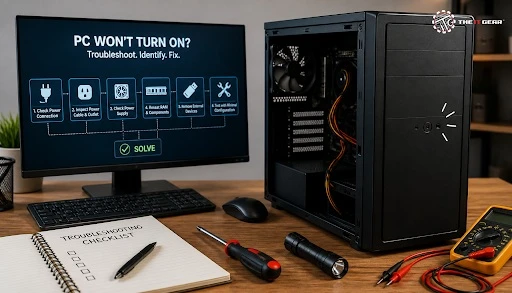
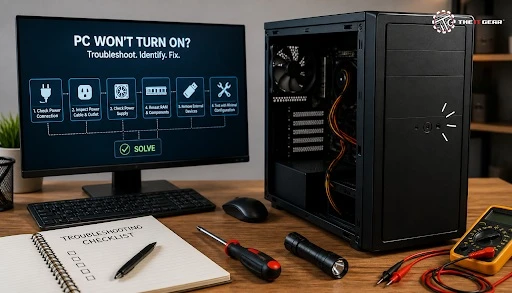
2. The PC fails to turn on — Test the power socket, the PSU switch at the back and the power cable before assuming the supply unit.
3. Blue screen of death — Find the stop code, then investigate any driver or hardware changes made in the past several days.
4. Windows not loading — Usually down to a corrupted bootloader, a broken drive connection or a failed update. Startup Repair can help here.
5. No internet connection — Reboot your router, ensure your network adaptor is enabled, and flush your DNS before you start pointing fingers at your ISP.
6. [Overheating](https://theitgear.com/blogs/details/thermal-throttling-what-it-is-and-how-to-keep-your-pc-cool-under-pressure) and power-off shutdown — Heatsinks clogged with dust and dried-up thermal paste leading to a power-off shutdown are common, mainly through Indian summer.
7. Blank or flickering screen — The most likely causes are an incorrect input source selected, an unseated HDMI or DisplayPort cable or a defective GPU.
8. A frozen screen — One hung app needs Ctrl+Alt+Del and then Task Manager, while a total system hang indicates storage or RAM issues.
9. Peripherals not found — Connect directly to a USB port at the back of the PC. Do this by plugging into a port directly connected to the motherboard, then give the system another go.
10. Problems during boot-up — A clicking hard drive means backup right now; codes from BIOS can tell which part of the system was problematic during POST.
Usually this short list is enough to check the home or office computer for a fault, and to be able to describe it in clear terms when you speak to a technician.
A technique trumps a recall test. The sequence prescribed by IT certification classes, and which all helpdesks employ, is a predetermined loop that you follow until you get to the bottom of the fault. It doesn't matter if that's on a desktop computer in a flat in Pune or in a server rack. The benefit is it prevents you from swapping bits of kit at random.
If these checks do not resolve the issue, a professional computer repair service can confirm the fault before you replace parts unnecessarily.
What Are the 7 Troubleshooting Steps?
1. Ask the user and note recent changes — a new printer, a Windows update, a moved desk — that sort of thing.
2. Reproduce the issue and record the precise error message or symptom.
3. Develop your theory of probable cause — at the most basic level, work from simple to complex and from the power and all wires.
4. Try out the hypothesis — modify one element at a time so you can pinpoint exactly what you corrected.
5. First plan an action, then follow your plan — remember to back up data before any change that you cannot undo.
6. Ensure complete functionality and take preventive action — test whether the solution survives a restart and cleanse the dust while the casing is open.
7. Document each finding — any known symptom, cause, and fix so that next time you get a call it's minutes rather than hours before you get back to the user.
Perform these procedure steps before consulting any troubleshooting guide; most common computer problems are solved in step 1 or 3.
The first 10 encompass hardware and boot behaviour, but a complete list of computer woes must account for the software and peripheral problems that take up help desk queue time. These ten are the ones commonly misdiagnosed as "the computer is kaput."
11. Browser errors and pages not loading — Clear the cache, turn all extensions off and test in incognito to rule out browser faults unlike network faults.
12. [Speakers](https://theitgear.com/peripherals/speaker) don't produce sound — Make sure the proper output device is chosen, then reinstall the audio driver or repair the Windows Audio service.
13. Apps crash, or won't open — Often caused by a corrupted user profile or half-installed update.
14. Malware and pop-ups — Conduct a comprehensive offline scan and uninstall any unknown extensions in your browser and startup entries.
15. [Printer](https://theitgear.com/office-essentials/printers) not printing — Delete and clear the print spooler, unplug, and insert the USB or network cable and reinstall the driver.
16. [Wi-Fi](https://theitgear.com/networking) disconnects randomly — This is a classic case of interference, an incompatible outdated adapter driver or a congested wireless router channel.
17. Laptop battery not charging — Check the charger with a multimeter, look at the DC jack and see the battery health in BIOS.
18. [USB drive](https://theitgear.com/storage) not recognised — Try another port first, then Disk Management to see if it shows up without a drive letter.
19. Date and time reset on every shutdown — It's a failing CMOS coin cell. Replace that CR2032 and reconfigure BIOS.
20. Windows update stuck or failed — Clean out the SoftwareDistribution folder and run sfc /scannow, then try your update again.
The repair of these problems prolongs the life of a machine and prevents the outlay of the replacement, which would not have been required otherwise.
Some errors tell you well in advance, and discovering them early is the least expensive form of maintenance. A clicking or beeping hard drive, a whining fan, a daily reset clock are all warning signs that should be investigated. These common computer faults also have tell-tale signs: SMART warnings and increased boot times in a mechanical drive, a CMOS battery which no longer maintains the BIOS setup, RAM errors presenting as mysterious blue screens, flickering laptop screens only when the lid is moved — and that's the LVDS or eDP ribbon cable running through the hinge, not the panel itself.
When a common PC problem keeps recurring, it's no longer "how do I fix it?" but "should I bother?" If your PC is more than five years old, not CPU limited, and you're replacing storage or memory instead of the CPU, upgrading should be really cheaper and much faster. The IT Gear's stock of SATA and NVMe solid state drives, DDR4 memory modules, thermal paste and cooling pads, surge protected power strips and replacement laptop batteries is exactly what you need to sort out these faults in the PC you have, rather than putting your old machine out to pasture.
Work top to bottom and you will have covered most everyday faults in under an hour. Keep this list of computer problems handy, note what you changed, and most breakdowns become a twenty-minute job rather than a service-centre trip. And if a part genuinely needs replacing, The IT Gear can supply it without you guessing at compatibility.
What are the 5 most common computer problems?
Based on the thousands of calls we've taken, a slow system, a machine that won't turn on, blue screens, no internet connection and overheating are the five most common client complaints — and they can almost always be tracked down without additional equipment.
What are the 7 basic computer skills?
Operating system navigation, file management, word processing, email, web browsing, basic cybersecurity hygiene, and straightforward troubleshooting are the seven often listed — another subject on its own, separate from the faults this article discusses.
When should I stop troubleshooting and call a technician?
If the fault remains after swapping the cables, re-seating the RAM or testing it with a good power supply, then the fault is almost definitely either the motherboard or the power supply. It is not something that the user should attempt to diagnose. For persistent motherboard or power-supply faults, use a professional computer repair service rather than continuing to swap parts.





#No. 9, 5th Floor, Max City Center, T. P Lane, Sadar Patrappa Road, Bengaluru - 560002 (Karnataka)