




Select a category

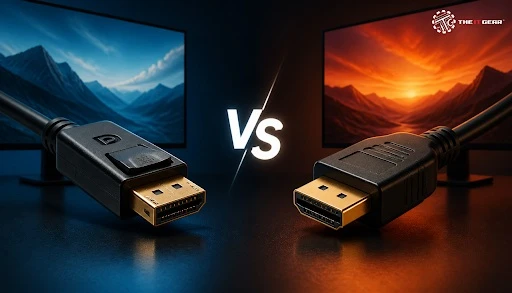
Walk into any electronics shop in India today and you will find 27-inch monitors boasting 180Hz, 4K and 10-bit colour – often with just one cable in the box. Your port choice determines whether you see any of that. So, which is the right cable for your graphics card, cable model and display? Here's how DisplayPort versus HDMI actually measures up.
The TL; DR: for PC screens, use DisplayPort as your default; for television screens, set HDMI as your default; for console and home theatre, also use HDMI.
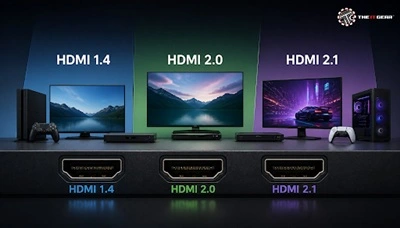
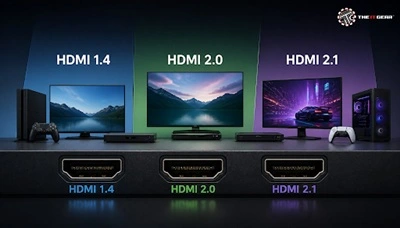
Check three factors before purchasing any cable: the port version on your graphics card, the port version on your monitor, and the cable's certification. For example, a 48Gbps HDMI 2.1 graphics card connected to a monitor port limited to 24Gbps using an old "High Speed" cable will perform like an 18Gbps HDMI 2.0 setup.
Improving any component beyond the lowest bandwidth in the chain yields no benefit, which explains why a ₹600 certified cable can be more important than upgrading to a ₹60,000 monitor.
This is the showdown that counts in 2026, because the overwhelming majority of 27- and 32-inch monitors sold in India will continue to come with DisplayPort 1.4 alongside an HDMI port that may or may not be full-spec.
On paper HDMI 2.1 wins on the raw bandwidth.
DisplayPort 2.1, at 80Gbps, yet again flips this around — because of this both "HDMI is faster" and "DP is faster" claims you'll see on the internet. (They are both correct for different version pairs.)
At 1440p 240Hz 8bpc 4:4:4, both HDMI 2.1 and DisplayPort 1.4 can provide a clear, no-compression signal (both cables work). At 1440p 280Hz, 1.4 needs Display Stream Compression, but HDMI 2.1 still has extra bandwidth: Confirm that your monitor is capable of displaying 280Hz over HDMI, before you get your hopes up.
If you only game on PC, use DP unless your display's HDMI port is actually 48Gbps. If your graphics card can access 3 x DP and 1 x HDMI, that also keeps your HDMI available for a capture card or TV. The best racing sims and video edit bays at 1080p 360Hz are easily DisplayPort.
Variable refresh rate is supported across both formats now — FreeSync over HDMI and DisplayPort, G-Sync Compatible over HDMI 2.1, so the advice "G-Sync only works on DP" is out of date. Measured input lag at matched refresh rates is essentially the same. What players will experience is typically an uncertified cable or a monitor input in legacy mode, not which connector they use.
This is the most frequent issue encountered after changing cables: washed-out blacks, crushed whites, or blurry text. The problem is seldom due to the cable itself and almost always stems from a setting hidden within the GPU driver or the monitor's menu.
1. Choose Full (0–255) for the set RGB range. TV's are Limited (16–235) which is what you'll see on a PC if plugged into a TV. Switch the GPU's output dynamic range to Full and that grey-black will be replaced with black-black.
2. Force 4:4:4 chroma. Windows text will go soft and red fringing when using HDMI 2.0 at 4K 60Hz 10-bit because it can't carry full chroma, DisplayPort 1.4 typically can.
3. Turn on Deep Colour or better mode. Most monitors are pre-set to the "HDMI Ultra HD Deep Colour" or "DP 1.4" off setting, which means they don't allow for 8-bit colour.
Yes. DisplayPort supports 8 channels of uncompressed audio and compressed bitstreams like Dolby Atmos and DTS-HD, with Windows recognizing the display as a playback device. The only problem is, it's a one-way connection, so your monitor must have speakers or a headphone jack to make use of it.
HDMI has two features DisplayPort has never matched. EARC sends lossless audio back from the display to a soundbar or AV receiver, and HDMI-CEC lets one remote power on the TV, console, and soundbar together.
If your system involves a receiver, HDMI is your only option.
A DisplayPort monitor will get you a full refresh rate — if you don't use it by default.
1. Plug into the graphics card, not the motherboard. When using a dedicated GPU on your desktop PC the video ports built into your motherboard generally draw their signal from the CPU's integrated graphics, which limits performance.
2. Select the input and turn on DP 1.4. Via the monitor menu select DisplayPort. Change the setting from "DP 1.2 / 1.4" or "improved" to the higher mode.
3. Confirm refresh rate in Windows. Settings > System > Display > Advanced display and choose the highest rate – enable MST if you are daisy-chaining, but bear in mind that bandwidth is shared.
USB-C has become the third genuine option because it supports DisplayPort Alt Mode underneath, enabling video, data, and up to 100W of charging through a single cable. This makes it suitable for laptops, docks, and handheld devices, while DisplayPort remains the standard for desktops and HDMI continues as the preferred choice for living-room setups.
Passive DP-to-HDMI cable is only designed to work in one direction, from DP source to HDMI display. To connect an HDMI laptop to a DP monitor, you will require an active converter, and even then you're limited by the bandwidth of the converter. Only purchase directional adapters when you are sure, which end is the source.
The DisplayPort vs HDMI debate has no clear winner, just the right fit for your hardware. For your desk in India, the DisplayPort, for your lounge - HDMI. The IT Gear stocks certified DisplayPort 1.4, HDMI 2.1 and USB-C cables so you can get the exact port version for your monitor, and you don't have to make a blind guess anymore.
Do I need a special cable to get 144Hz?
Absolutely. Use either an Ultra High Speed HDMI (48Gbps) or VESA-certified DP80 cable, an uncertified cable will automatically default you to 60Hz.
Does DisplayPort support HDR?
Yes, you can get HDR10 and Dolby Vision over DisplayPort 1.4 at 10-bit colour, but only if the monitor and cable support the bandwidth.
Can I connect a DisplayPort monitor to an HDMI laptop?
The direction can only be the output from an active HDMI-to-DisplayPort converter. The passive adapter cannot be applied in this direction.





#No. 9, 5th Floor, Max City Center, T. P Lane, Sadar Patrappa Road, Bengaluru - 560002 (Karnataka)






Looks like you haven't added anything yet. Explore our builds, components and gear.
Continue shopping