






Select a category

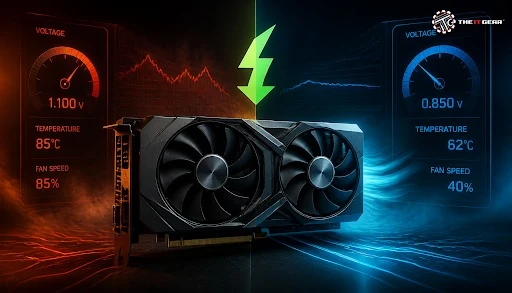
Undervolting is one of the most effective ways to reduce GPU temperatures, power draw, and fan noise without sacrificing performance. In fact, many modern graphics cards ship with voltage curves that are more aggressive than necessary, leaving headroom for efficiency gains. Whether you own a desktop NVIDIA RTX card, an AMD Radeon, or a laptop with a discrete GPU, this guide will walk you through safe, step-by-step undervolting using free tools.
Undervolting is simply the reduction of voltage for any given clock speed. Each card has a voltage-frequency curve, which specifies the amount of voltage required to hold that specific frequency.
In most cases, this curve is set conservatively to give every GPU a wide margin of error for stability, meaning the actual GPU does not need as much voltage to run at a given frequency. When we undervolt, we reduce the amount of power (and so heat) a card consumes – making the card 'hotter', but also able to sustain higher boost clocks for longer because it is reaching power and thermal limits less often.
Many users confuse undervolting with underclocking, and the two are often mentioned together when discussing "how to underclock GPU".
The distinction is simple: undervolting reduces voltage at the same clock speed, while underclocking reduces the clock speed itself. Underclocking is useful for stability or reducing heat when a card is unstable, but it directly lowers performance. Undervolting however can maintain or even improve performance by freeing up thermal headroom. A quick comparison:
You can expect a few things to happen when you undervolt. The first being that temperatures usually go down 5-15°C according to the card and the reduction in voltage.
Second, power draw goes down, which is very handy if you have a small form factor build or a laptop.
Third, everything runs cooler (and lower temperatures mean lower fan speeds, so less noise).
Fourth, because the GPU isn't providing thermal throttling, your compute cards may have slightly higher sustained boost clocks and slightly higher 1% lows.
Finally, less heat and less voltage to the card may also result in longer lifespans for your hardware. And if you have a multi-GPU deep learning or mining rig, undervolting can also help in efficiency per watt.

This tutorial is for MSI Afterburner that can be used with either NVIDIA or AMD GPU. Make sure that you have a baseline reading and stress-testing program like Unigine Superposition or 3DMark before you begin.
1. Create a baseline – Run a benchmark such as Superposition or a game that can push your GPU for 10 minutes. Record your GPU temperature, hotspot temperature, power consumption and FPS on average. This is your baseline.
2. Open the curve – Fire up MSI Afterburner and hit `Ctrl + F`. The curve editor will display the voltage-to-clock speed relationship.
3. Select your target voltage – Choose a point on the curve near 0.900V to 0.950V (a typical starting point for NVIDIA RTX cards). Click on it.
4. Push the clock at that voltage – Raise the clock rate at your target voltage by 100–150 MHz. This instructs the GPU to run at a higher clock rate for the same voltage.
5. Squeeze the curve to the right – select and drag all points to the right of your target voltage below the target to the same point. This will keep the GPU from trying to use higher voltages when it's under load.
6. Apply and stress test – Hit Apply and save the profile to a slot. Run your benchmark or game once more. If you notice artifacts, driver crashes or black screens, lower the clock offset 25 – 50 MHz and test again.
7. Rollback when unstable – save your last stable settings. Revert to your last profile if instability arises. Undervolting is always reversible.
For the initial voltage search, decrease voltage in coarse steps of 80–100 mV, then adjust more precisely in increments of 10–25 mV. Do not depend on a single benchmark, Superposition alone does not provide a sufficient stability test. Evaluate stability using multiple games, ray-tracing workloads, and compute tasks.
NVIDIA features a first-party automatic tuning tool that is very safe for beginners to use, and if you want more manual control MSI Afterburner is still the best tool for overclocking and undervolting. The automatic method uses NVIDIA's own algorithms to find a stable undervol, while manual tuning allows for more control.
1. Open the NVIDIA app, select System > Performance.
2. Click Automatic Tuning and start the scan. It will test your GPU and find a safe undervolt/overclock.
3. Use the settings once you are done.
Or any other default setting. You can always revert back to default from the same menu.
This method is good if you are afraid of editing all the curves in the MSI Afterburner. For higher undervolts, go higher in the MSI afterburner steps listed above.
You can also undervolt AMD's with AMD Software: Adrenalin Edition. Open it up, navigate to Performance > Tuning, then under GPU tuning select Manual and under Voltage select on. From there you can reduce the voltage slider slowly (say, 20 to 30mV at a time) and then stress test. AMD's panel lets you set the maximum frequency as well, which will help to stabilise your undervolt.
Yes, undervolting is mostly safe on laptops too, with some notable exceptions. Unlike a desktop, a laptop has a thermal budget split between the CPU and GPU, so dropping the GPU's voltage tends to result in greater temperature reductions than on a desktop.
Many laptop BIOS and OEM tools disable voltage control (mostly in laptops after Plundervolt security fixes were implemented). You can bypass this by decreasing the power limit or using a negative core clock offset.
Generally yes on most discrete NVIDIA and AMD laptop GPUs (via the curve editor or power limit slider in MSI Afterburner). Intel iGPUs and some OEM-locked mobile dGPUs may lock out voltage control altogether. In this situation, reduce heat by using the power limit percentage and frame rate cap. CPU undervolting is a different process that takes specific software like ThrottleStop or Intel XTU. As a laptop user, the best practice order is to: down power limit, down core clock limit, down the fan curve, down the CPU voltage.
Undervolting is extremely safe. At worst, you will have system instability like driver timeouts, black screens, artifacts, or crash to desktop; you will not cause any permanent hardware damage.
As you are only reducing voltage below default, there is no risk of overvoltage or electromigration. You can always undo the undervolt by clicking the default button in MSI Afterburner, reinstalling the driver, or loading a stored profile. Software tweaks will not void warranty. The only danger is in losing your work during a crash, so save frequently.
It depends on which sensor you are reading. Many recent GPUs typically run 80-85 degrees at load as normal. 90 degree core temp is getting hot, but is in the normal range for many cards and will throttle as a safety measure. 95-110 degress is typical for hotspots (junctions) and the memory junction in many cards before they hit their hard throttling limits. Laptop GPUs normally run hotter than desktop cards.
Here is a quick reference:
In most cases, undervolting will shave anywhere between 5–15°C off of these numbers and help you easily get right back into the normal zone.
Undervolting is a free tweak that can be reversed – temperature, power draw, and even performance can all be reduced or achieved by avoiding thermal throttling. If you're using the MSI Afterburner, the nvidia app, or the AMD Adrenalin, then the most important thing is to test thoroughly and take baby steps. The IT Gear stocks a good selection of gaming laptops and graphics cards that undervolt well.
Q: What is MSI Afterburner?
A: MSI Afterburner is a free graphics card monitoring and overclocking utility. It has a Voltage-Frequency curve editor for most NVIDIA and AMD based graphics cards.
Q: What does Reddit say about undervolting GPUs?
A: Reddit communities like r/nvidia generally agree that undervolting is safe and effective. A common tip is to overclock first to find your card's ceiling, then undervolt around that known stable clock. Users also stress that one benchmark is not enough—test multiple games and workloads.
Q: How to undervolt the CPU?
A: CPU undervolting is done with ThrottleStop or Intel XTU. You set a negative offset in Adaptive mode. It's a different process from GPU undervolting, and newer laptops often have it locked out due to Plundervolt mitigation.
Q: Can I undervolt Intel Arc GPUs?
A: Yes, there are tuning options for voltage and frequency via the Intel Arc Control software. The concepts are unchanged: lower voltage, test stability, check temperatures.





#No. 9, 5th Floor, Max City Center, T. P Lane, Sadar Patrappa Road, Bengaluru - 560002 (Karnataka)






Looks like you haven't added anything yet. Explore our builds, components and gear.
Continue shopping