









Select a category

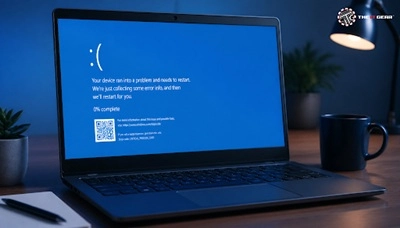
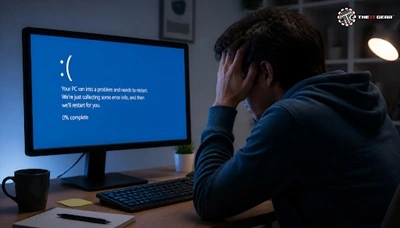
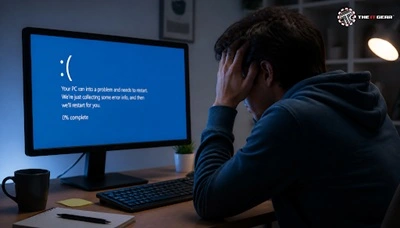
When you're working on your Dell laptop and suddenly you're staring down the blue screen of death, your day takes a turn for the worse. Here's a crash course in dealing with that peculiar blue sad-face pop-up that means bad news for your Windows system. A recurring BSOD is not something to ignore; if it keeps happening, a professional computer repair service can help diagnose the underlying cause before it becomes a bigger hardware problem.
Just like any Windows computer, a Dell laptop can suffer a blue screen of death, from driver conflicts to hardware failure or file system corruption. We'll take a look at the most common causes, troubleshooting, and resolutions for Dell laptops.
A Dell Laptop Blue Screen of Death is almost never random; it is an indication of a potential conflict. As answered by Microsoft themselves, in a majority of the cases, blue screen errors are driver related. The point is not to get baffled by this statement, as faulty hardware or corrupted software can also be a part. If the same stop code keeps returning after basic fixes, expert computer repair can help isolate whether the issue is software or failing hardware.
Driver Issues
Drivers that are outdated, incompatible, or broken are the common causes of blue screen of death errors that occur on Dell laptops. This most commonly occurs following a Windows update or plugging in a new device. Installing an older driver or updating the driver from Device Manager should fix it.
Faulty Hardware (RAM, Storage, Power Supply)
Constant crashes can be due to bad RAM, a dying hard drive or SSD, or a failing power supply. You can run Dell's hardware diagnostics (by pressing F12 at startup) before Windows loads to check on these.
Corrupted System Files
Power surges or malicious programs can corrupt the Windows files. You need to execute the commands `sfc /scannow` and `DISM` to fix those files and resolve the blue screen loop.
Overheating
A laptop can turn off due to overheating. Over time, dust accumulation and dried thermal paste (placed between the processor and heatsink) in the Dell laptop can cause the device to shut down by itself to prevent overheating.
Windows Update Conflicts
A new Windows patch or feature update is incompatible with a driver and causes sudden blue screen of death. Roll back to the previous version of Windows or remove the latest update through System Restore.
Before the fixes, gather clues. What is the stop code listed on the blue screen (like `CRITICAL_PROCESS_DIED`)? Hold your phone to the QR code to open Microsoft's official troubleshooting page. Search the folder `C:\Windows\Minidump` for smaller dump files, which usually identify the driver causing the problem. Ask yourself, "What's new?" — a new update, program, or hardware change can often be the key.
Start here, from least to most invasive. All of these steps apply to BSOD troubleshooting in Windows 10, 11, and 7, with a few minor differences.
1. Restart your laptop – A one-time crash may clear on its own. If the BSOD repeats with the same stop code, proceed.
2. Start in Safe Mode – Select `Shift + Restart` from the power menu. Safe Mode uses only basic drivers; if the problem disappears, a third-party driver or app is likely the cause.
3. Update or roll back drivers – In Device Manager, right-click devices that you suspect (most of all display and network adapters) and select Update or Roll back.
4. Run Windows Update – Make sure you have all the updates installed, including optional driver updates available on Dell's support site.
5. Scan for malware – Conduct an offline scan with Windows Defender or another well-respected antivirus.
6. Fix system files – Using an elevated Command Prompt, run: `sfc /scannow` and `DISM /Online /Cleanup-Image /RestoreHealth`.
7. Verify disk health – Use `chkdsk /f /r` to identify and repair file-system errors.
8. Test memory – To open Windows Memory Diagnostic, type `mdsched.exe` in the Run dialog, or use MemTest86 for a more comprehensive test.
9. Test Dell hardware diagnostics – Reboot and tap F12 during the Dell logo, then select Diagnostics to examine RAM, storage, and other hardware.
10. Use System Restore – If the BSOD occurs following a particular change, go back to the time before that change.
11. Reset or reinstall Windows – As a last resort, save your data and then use Reset this PC (keep my files) or do a clean install.
While the core troubleshooting steps are similar, each Windows version has its own quirks.
For all versions, downloading drivers directly from Dell's support website (using your Service Tag) is safer than using third-party updaters.
Prevention is better than cure. Keep Windows and drivers up to date from reputable sources; create a System Restore point before making significant changes; and back up files regularly. Keep an eye on temperatures inside the laptop and clean the vents every few months. Learn more in this guide to PC cooling systems.
Avoid using unverified "driver updater" tools, and check new RAM or storage for compatibility. These practices greatly lower the risk of an unexpected blue screen.
When software fixes don't work and the BSODs keep on coming, or the laptop can't even start up, you may be looking at a hardware failure. Frequent BSODs and a selection of different stop codes can indicate a motherboard or power supply issue. Now's the time to ask a professional computer repair service.
Looking to replace or upgrade? The IT Gear has Dell laptops and authentic laptop accessories available.
A Dell laptop blue screen of death is irritating, but more often than not, it is recoverable. Refer to the diagnostics and troubleshooting guidelines above to troubleshoot the Dell BSOD independently. When the issue is persistent hardware failure or you simply want a new device, The IT Gear offers Dell laptops and replacement parts for a faster return to your computing.
A crash with a blue screen occurs immediately after a Windows install or driver update. Record the stop code and revert to a restore point before the change.
Yes. It's often defective RAM, or RAM that doesn't match another module. Run Windows Memory Diagnostic (`mdsched.exe`) or MemTest86, and test the RAM sticks one at a time.
No, BSOD is an error handling mechanism introduced by Windows. But a virus can corrupt system files and result in a BSOD. You can scan your system with an anti-malware tool.
Repeat the same fixes: update drivers, run `sfc /scannow`, install Windows updates, and start Windows in Safe Mode from Settings > Recovery. Reset Windows 11 if the error continues.





#No. 9, 5th Floor, Max City Center, T. P Lane, Sadar Patrappa Road, Bengaluru - 560002 (Karnataka)