







Select a category

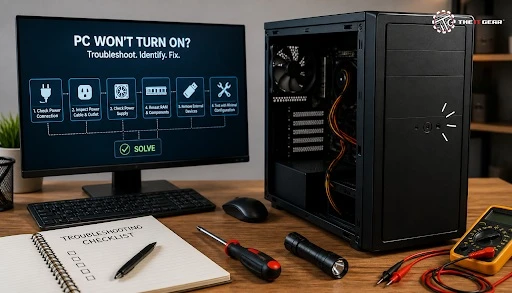
Your PC was running smoothly and sound last night. But now the fans don't spin, the power LED stays off, and when you hit the power button, nothing happens. Before you panic, don't worry — most computer not turning on issues can be traced to only a few common causes: a turned-off extension board, a disconnected 24-pin cable, a dead CMOS cell, or a stored standby charge. I'll take you through them — the same way a tech would. And if you'd rather not troubleshoot alone, a professional computer repair service can test the system safely.
The phrase refers to three very different failures, and it can cost you time and money to get them mixed up:
Each of these has a cause tree of its own, so identify what stage you're at before pulling a single cable.
Imagine the chain as wall socket → power supply standby rail → power button signal → motherboard Power Good → POST/display output → boot drive → Windows. If a link in the chain is disconnected, your PC may not turn on. Each symptom is a "leak" in that chain, showing you where the break is. No fans at the back or front of the case suggests the first two links. A logo screen followed by a boot error suggests the drive or OS.
Step 1: Test the External Power Path and Drain Flea Power
This costs you nothing and calls for no tool, but it has solved a significant proportion of dead PCs. Try another device in the wall socket, make sure the extension board or surge protector is turned on and hasn't tripped out, unplug and replug the power cable at each end, and turn on the "I" on the back of the PSU by pushing the rocker switch.
Extension cords and spike guards are more likely than you think to blow in Indian homes where the desktop is perched on a desk on a multi-socket board.
If the computer sat unused for weeks or had a brownout, the remaining power in the PSU — often called standby charge — can prevent it from powering up. Remove the power cord and press and hold the case power button for 30 seconds to deplete it. Then re-plug it and power up again.
For a laptop, remove the power cord and hold the button down. If it powers up, you've found the cause. If the PSU fan stutters and stops, it is probably a failed power supply.
If these external checks don't bring the system back, don't keep swapping parts blindly; a PC repair service can test the power path safely.
Step 2: Internal Checks — RAM, GPU, Motherboard and Debug LEDs
If you're sure the power supply is OK, open the case with the machine unplugged and examine the three connectors everyone else neglects to check: the 24-pin ATX, the 8-pin CPU EPS, and the PCIe power from the power supply to the graphics card.
Reinstall your RAM firmly until the sticks lock into place, reseat your graphics card in its slot, and clear CMOS using the CLR_CMOS pins or the reset switch on the motherboard. On an older motherboard, a flat CR2032 coin cell will give you no-POST, with the clock and checksum resetting.
Modern motherboards will illuminate a faint LED named CPU, DRAM, VGA, or BOOT on POST, and whatever remains illuminated indicates the failed subsystem. If DRAM is illuminated, it's usually a failed stick or slot, so test one stick of RAM in slot A2.
If VGA glows, it could be the cable or graphics card; try the motherboard's onboard output. If the CPU illuminates, you may have bent socket pins or a cooler that hasn't been seated. If the CPU LED doesn't glow, it's likely a power problem, not a processor.
PC Not Booting Up But Has Power: What Could Be the Problem?
Fans are spinning and lights are on, but you see nothing. The machine has power but fails POST or the display handshake. External peripherals can be an undervalued culprit: an external hard drive, powered USB hub, or even a bad mouse can freeze boot or hijack boot order. Disconnect everything except the keyboard and monitor, then reintroduce devices one by one.
If you see a manufacturer logo but no Windows, go into BIOS and make sure your boot drive is first in boot priority. If the drive does not show up in BIOS, it's a drive or cable problem. If the drive is there but will not boot Windows, it is a corrupt bootloader, malware, or an update that failed during boot — which can normally be fixed by Windows recovery or Safe Mode.
A black screen on a running machine usually points to a display-path fault, and the computer is still alive. Replace the HDMI or DisplayPort cable — don't bother examining it, as external damage is too difficult to determine. Check the monitor's input source, try the monitor on a different computer, and re-insert the GPU. Remember, this black screen of death isn't a blue screen of death — BSOD indicates a Windows crash with an error message, not a no-signal error. For display-path checks, start with a known-good display or video cable.
Desktops are the simplest to troubleshoot because all components are interchangeable. For laptops, the chain expands to battery, charging brick, and DC jack, so always look at the charger LED to start. All-in-ones use the display path as well, so a no-display issue may be isolated to the panel, not the GPU. Do the same checks, just with fewer parts you can physically reseat.
Stop testing immediately if you notice a burning smell, hear a repeating clicking sound from the power supply unit (PSU), or observe bulging capacitors on the motherboard. Never open a power supply, as its capacitors can retain a dangerous charge even after it has been unplugged.
If a computer does not show any POST, does not beep, and displays no debug LED activity after replacing the PSU with a known-good unit, it is likely damaged at the motherboard or BIOS level. In cases of a soft brick, a BIOS reflash may restore function, while a hard brick will require a new motherboard. If the system is still under warranty, contact the manufacturer before opening any components. If you're not confident working inside the case, book a computer repair service.
For the "gone" bits, The IT Gear supplies power supplies, cables, CMOS cells, surge protectors, and PSU testers so you can get it right and avoid the cost of a complete repair.

A computer not turning on usually stops at step 1 or 2, which is why the order of troubleshooting is so much more important than the spare parts you have. Step through power, POST, and boot, and the problem will usually be evident without having to spend a lot on diagnostic devices. If you do need parts, The IT Gear sells PSUs, cables, CMOS cells, and diagnostic devices with delivery all over India.
A bricked machine will not POST, will not beep, and will show no progression on the debug LED, even with a confirmed working power supply. Soft bricks from a failed BIOS update can sometimes be fixed by reflashing, but with a hard brick, the motherboard has to be replaced.
Other problems apart from power outages include a fan not functioning due to dust that causes overheating, a dying power supply that randomly shuts the system down, boot loops, blue screens due to driver conflicts, a dying drive leading to sluggish performance, and malware. If shutdowns are random rather than immediate, this guide to why a PC randomly restarts can help narrow it down.
A change in voltage or a sudden cut could cause the power supply unit (PSU) to enter protection mode or trip the surge. Turn off and discharge all the devices, then turn on the PSU first, then the PC second.
A surge protector helps prevent spikes, but a UPS also helps prevent brownouts and short power cuts, which can put extra load on a PSU. If you experience power cuts regularly in your area, get a UPS. For buying criteria, see this UPS buying guide or this guide to choosing backup power for a gaming PC.





#No. 9, 5th Floor, Max City Center, T. P Lane, Sadar Patrappa Road, Bengaluru - 560002 (Karnataka)






Looks like you haven't added anything yet. Explore our builds, components and gear.
Continue shopping