







Select a category

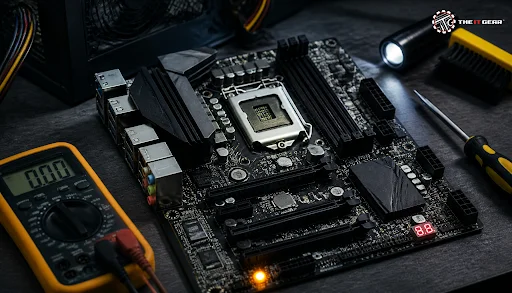
A malfunctioning motherboard is one of the hardware problems that can be most annoying for a PC user. From a totally blank display to random shut downs accompanied by intermittent beep codes, a defective motherboard can stop your work completely.
In repair workshops, electricians regularly identify power and physical causes as the most frequent computer motherboard problems occurring year after year. The good news is that a large number of these issues can be diagnosed and even fixed by the user alone without having recourse to special tools.
They usually belong to some well known categories of breakdowns. By identifying these you can save hours of your time and not have to resort to wild guesses.
1. Power Failure (No Power / No POST) - The system turns on but it never gets through the Power-On Self Test (POST). In most cases, a defective 24-pin ATX cable, a discharged CMOS battery, or a failed voltage regulator module (VRM) that starves the CPU of clean power.
2. No video output - The machine's fans and lights start normally but the screen remains black for good. Make sure the graphics board is solidly mounted in its slots and that all 6-pins or 8-pin auxiliary power supply cables for it are attached properly. Besides this, a pin bending in the graphics card slot may interfere with the video transmission as well.
3. System shutting down randomly and freezing - A PC that just goes off while you're using it tends to overheat. Capacitors that are swollen or have leaked, dusted fan sockets, and a lack of air flow in the case cause thermal protection shut downs. Also, a malfunction can be initiated if the stand-offs do not make proper contact when touching the motherboard.
4. Booting circles and the beeps of the BIOS - If a PC repeatedly restarts accompanied by BIOS beep codes, this usually signals a problem with the memory sticks, an unstable DIMM slot connection or a corrupted BIOS firmware. Relocating memory chips and clearing the CMOS can solve a large number of these issues.
A common thing in each of these issues is that it can be identified by the methodical exclusion through different checks. In fact, this is the diagnosis technique that experts resort to.
The best way to tackle motherboard issues at home is to follow a diagnosis process, that is in the form of a step-by-step procedure. Professionals never guess, they figure out each faulty component in a separate step of the process.
Step 1 – Perform a Visual Inspection First
Uncover the PC, look for capacitors that have swollen, char marks, ribbon cables. Visually checking the CPU socket for bent pins and ensuring that the 24-pin ATX and 8-pin EPS power connectors are properly plugged in. Most of the time, merely looking around would be sufficient to find out what is wrong within a few minutes.
Step 2 – Run a Minimal Boot Test
To identify the cause of the issue, strip the PC down to the basic parts, one RAM module, the CPU, and the integrated graphics card, if there is one. Remove all drives, expansion cards, and external peripherals.
The motherboard should POST properly if you connect only the minimal components to the motherboard because then, the problem is with one of the components that were removed and not the motherboard itself.
Step 3 – Reset the CMOS to Clear Faulty Settings
You can clear your BIOS settings to reset your computer. It could be a CMOS jump, a rear IO reset switch, or even just a couple of minutes without taking the battery out. Reset or clear your BIOS settings if you suspect faulty computer firmware settings. If your power is still on, be sure that you have disconnected the power supply and hold down the power button for 30 seconds. Also, after discharging through this process, you can work around a battery safely.
Step 4 – Decode the POST Beep Codes
Listen to the sounds or beep patterns. A long beep followed by two short beeps generally shows that your graphics card is faulty. Memory failure is indicated by a continuous beep. The motherboard user manual will normally include an AMI and Award code listing if you have to decode the beep patterns that your motherboard produces. Deciphering beep patterns is an available diagnostic means without cost. You don't need to do anything other than interpret the beep sequences.
There are many clues to suggest the motherboard failure in laptops or desktops. If there is no power indicator or power light, the fans have not been running, and there is no beep at all from the motherboard, indicating that the motherboard or the motherboard power circuit is not functioning, and the components cannot receive the power.
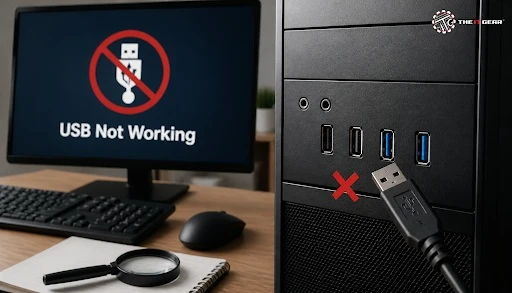
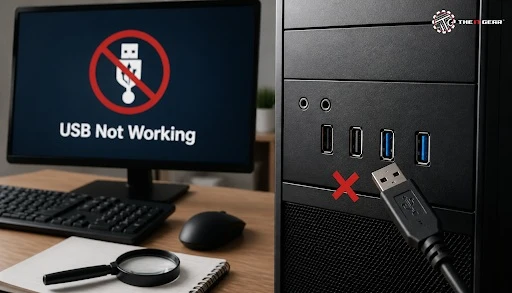
If a burning smell arises or there are scorchmarks around the VRM of the motherboard, it means the board has suffered a short-circuit damage. The motherboard could be damaged, if for instance, you suddenly find that all the USB ports and external peripheral devices do not work, and at once the audio and Ethernet ports are disconnected. It would probably mean that the motherboard has a chip with one of its surrounding parts damaged.
It is recommended to always check if the failure can come from another computer part before you decide to replace the motherboard, by getting a working graphics card, RAM, and a different power supply.
Besides component aging, motherboard failure is mainly due to environmental and physical stress.
Thermal stress/heat stress: Overheating is mainly caused due to accumulation of dust over the cooling fans and dried out thermal paste. As a result, solder joints on the GPU and chipset weakens. It is the number one reason for laptop motherboard failures around the globe.
Liquid Spills: Spills of coffee/water into the motherboard can cause a short-circuit to adjacent pins by corroding PC boards, thereby damaging the charging circuit or, in general, the embedded controller chip of the motherboard.
Power surges: A power surge, through the DC port, or a faulty laptop charger, is the cause of burn damage to the motherboard components like charging IC and input fuses.
Physical impact/damage: A sudden and heavy dropping of a laptop to the ground could damage the motherboard by making cracks on it and dislodging the BGA chipset. The damage results in intermittent hardware failures, which is hard to identify without micro-soldering repair skills.
Not only does the dead motherboard mean that the computer has lost its soul, but there is also a possibility that the motherboard can be brought back, in some cases.
First step - Unplug the power supply and press and hold the power button for 30 seconds to discharge any energy stored in residual capacitors. This will result in a CMOS hard reset and eliminate ghost power status that is stored electronically.
Second step - Check and reposition all essential parts and power connection points, such as the RAM, GPU, and the front-panel header. If it is a laptop, check the DC jack for cold solder joints, a typical physical failure that results in the inability to recharge.
If the motherboard remains lifeless, more complicated techniques like the BIOS chip reprogramming, replacing the MOSFET, and resoldering capacitors need specific toolsets and expert knowledge. At this point, it can be prudent to check whether it's cheaper to get your board fixed by professionals or buy a new one, whichever is feasible.

Quick list of the most important ways to verify before assuming a dead motherboard:
1. Use a paperclip test to check the electricity coming to the wall socket and the PSU.
2. Take care not to overlook a physical injury, a capacitor swell up, or if it is damaged physically with bent pins.
3. Put back the RAM, graphics card, and all power connectors.
4. Boot your system with just the CPU, one memory stick and onboard video for a limited start.
5. Reset the CMOS and wait for POST beeps.
6. Only if it is proven that the suspected component is damaged, test with working spare parts.
At first glance, motherboard problems might be very frustrating ones, but as long as you follow the right steps, you will discover that a lot of them involve only cheap and easy solutions. Start with inexpensive and fast diagnostic techniques first, and only then proceed to more complex component checking methods.
We have a great number of motherboards, RAM modules, power supplies, and other PC components in stock from leading brands at The IT Gear to assist you with upgrading or replacing your hardware confidently. If you're looking for an inexpensive board for office work or a top-notch model for gaming and content creation, then your needs are covered by our product catalogue. For more guidance on selecting the right board, check out our guide on best budget PC motherboards in India or learn about the Z790 gaming series motherboards for 12th, 13th, and 14th gen Intel processors.
Can a faulty motherboard damage other components?
Definitely, a yes. A faulty voltage regulator will cause irregular power delivery to components such as the CPU, RAM, and storage drives, gradually causing permanent damage. It is recommended to replace a suspect motherboard promptly to protect the rest of your system.
How long do motherboards typically last?
Under cool and clean electricity conditions with regular usage, a desktop motherboard may outlive the components connected to it for almost 8-10 years. Still, laptop motherboards on an average tend to be shorter-lived due to excessive heat, dust, and handling.
How do I know if my phone's motherboard is damaged?
A smartphone motherboard malfunction is often seen in various forms:
In such cases, the water damage indicators visible under the phone's SIM tray are a good starting point for identifying the actual reason behind the problem which may be water damage.
What is the computer motherboard problem that causes beeping?
POST beep is a language used by the BIOS to alert users that hardware failure occurred. One long and two short beeps typically indicate a graphics-related problem while a series of short beeps usually points to failure of the RAM module that is faulty. To get the correct interpretation, refer to the beep code chart provided in your motherboard user manual.





#No. 9, 5th Floor, Max City Center, T. P Lane, Sadar Patrappa Road, Bengaluru - 560002 (Karnataka)






Looks like you haven't added anything yet. Explore our builds, components and gear.
Continue shopping