










Select a category

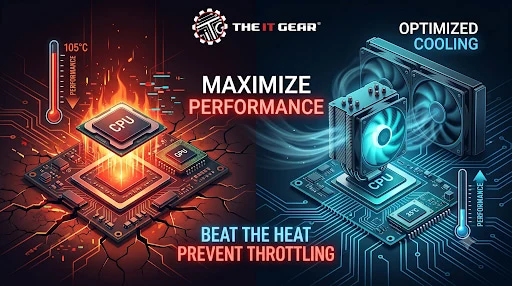
Think about having a game session that is nearly reaching its climax or playing a high definition video for a client, and your PC begins to be sluggish, stuttering or even worse, frames dropping. Well, this stunning experience can sometimes be prevented by a built-in safety mechanism called thermal throttling.
This also has particular relevance to Indian PC users, where even in a relatively cool room, room temperatures are well over 35 degrees, and in the summers it is a lot higher. So the customer needs to ensure his / her costly hardware, be it a gaming PC or a work laptop, is maintained to deliver a consistently stable performance, without potential permanent damage.
Thermal Throttling is an automatic 'fail-safe' feature built into all modern CPU's and GPU's.
This is there first and foremost to prevent the hardware overheating and destroying itself. When the processor reaches a pre-set temperature (usually 95 degrees to 105 degrees ) the system will 'dynamically' trick the CPU's voltages and clock speeds back until the heatsink and cooling system can efficiently cool the graphics card down.
Why is it Considered a Protective Feature, Not a Flaw?
There are many who blame a defective processor or PC, and then become upset with the manufacturer for the seemingly broken CPU. Nothing could be further from the truth - unless otherwise stated, the CPU or GPU is not defective.
Throttling is, in fact, a very clever feature that prevents your hardware from operating at 100% voltage and heat for too long before it crashes, corrupts data, or simply explodes. Yes, throttling does have an effect on performance, but it is a necessary evil to prolong your hardware's lifespan. Think of the circuit breaker in your home.
It may be a pain when the lights suddenly go out, but it’s a small price to pay to avoid an inferno.
What Happens to Your PC During Throttling?
As soon as a component reaches its maximum capacity, you'll start to see the effects immediately.
The effect will become visible with the processor clocking down in GHz. This will cause an immediate performance drop. If you are a gamer this will be directly visible as a change in FPS and stuttering and input lag in your screen.
If you are a video editor or 3D artist then your rendering time will increase, and you won't be able to scrub through your timeline. Basically the hardware will make your task take longer for its own health.
Back to the core now. Realizing that thermal throttling is not simply a random glitch, but a safety measure, allows you to work upwards and find the real cause, which in most of the cases is poor cooling and not the autorun.
Thermal Throttling cannot be diagnosed by guesswork or assumption, you need data to prove it. The most typical symptoms of thermal throttling are a very quick drop-in performance when during onerous tasks like gaming or rendering while listening to the sound of the clocks rushing along the CPU suddenly die away.
You may use hardware monitoring programs to track this effect better.
Using Monitoring Software (HWiNFO + Cinebench)
The industry standard to detect throttling is HWiNFO, a free yet very powerful sensor monitoring tool. Download and run the sensor window. Then run a taxing program like Cinebench benchmark or a demanding game.
Monitor the CPU or GPU section in HWiNFO. If at the exact moment the thermometer hits the 90 degrees mark, the clock also suddenly and sharply drops, that is thermal throttling proven, (for instance 4.0 GHz dropping down to 1.5 GHz). Generally, most tools will have a "Thermal Throttling" tag. It will be "Yes" or "No".
What Does Thermal Throttling Look Like in Games?
On a visual level, Throttling does not look like just a "a few FPS loss". It looks like very intense stuttering, with frame-rate down to 15 and back to 60 fps in just a few seconds. You will probably see some screen tearing or even freezes during half a second.
In a laptop it happens very quickly right from a cold start when you run a game, because the thin shell is not able to cool down fast enough. If your game is fine during the first 5 minutes then turn into a slideshow, it almost surely is thermal throttling.
While both CPU throttling and GPU thermal throttling are triggered by heat, they occur under different workloads and have distinct symptoms. Once you know which component is throttling, you can choose the right fix.
In numerous gaming laptops, both CPU and GPU use common heat pipes, so one needs to be thermal throttled to keep the other at bay. For budget Indian users playing AAA titles (like Cyberpunk 2077, Valorant etc.), GPU thermal throttling is the silent killer of your kill-death ratio.
Yes, AMD Ryzen thermal throttling is absolutely a reality. AMD RYZEN processor family (RYZEN 5 7 9 etc.) does use thermal throttling as a safety mechanism but AMD handles it a bit differently from Intel. The upper limit of RYZEN chips is 95 degrees, once they reach this temperature, it will start throttling very hard.
Rather than older generation CPUs that came with a hard "on/off" throttle, AMD Ryzen CPUs employ algorithms like Precision Boost 2, Precision Boost Overdrive (PBO), among others.
A Ryzen chip running at 90 degrees celsius (194 degrees Fahrenheit) might still be healthy, but the moment it hits 95 degrees (203 degrees), thermal throttling will reduce the clockspeeds from 5.0GHz down to 3GHz.
For Indian content creators, using a Ryzen 7 5800X or Ryzen 9 5900X, having a decent 240mm or 360mm AIO would be invaluable. By knowing your AMD processor's maximum capacity, you are able to set your fan curves appropriately.
As you know prevention is the best way instead of suffering performance drops due to active throttling. The good news is, most of these throttling problems can be rectified with simple maintenance or cheap upgrades.
1. Clean Your System and Improve Airflow
Dust is your number one enemy of cooling- after several months, the fans and heatsink fins will get congested by dust and begin holding in heat. Open your cabinet (or the back panel of your laptop, if you're comfortable doing it) and use a can of pressured air or a soft brush to clear the dust.
Make sure your PC case has a clear feed (front and bottom) and exhaust (back and top). If you live in India, try keeping the PC off the floor, which can have a lot of dust on it.
2. Reapply High-Quality Thermal Paste
When thermal paste is a little over 2-3 years old, then it is no longer able to transfer heat from the CPU/ GPU die to the cooler at the optimum capacity. Replacing the old compound with a premium compound (Arctic MX-4 / Noctua NT-H1) can improve temperature by a range of 5-10 degrees. This is an inexpensive fix (Rs. 500-Rs. 1000), with immediate results.
If you are one of those who is using the stock cooler that came with the processor, an all around air cooler upgrade to something like the one from the Cooler Master Hyper 212 (INR 3000-INR 4000) will be a game-changer.
3. Optimize Fan Curves and Undervolt
Your fans just might be not spinning quickly enough at times. Pull up your BIOS or use a program like MSI Afterburner (GPU) to hit a more aggressive fan curve.
Try undervolting/decreasing the voltage you supply to the CPU or GPU, while maintaining clock speed which can cut down on heat. It's commonly done for laptop thermal throttling since you can't upgrade cooling.
After you have implemented these fixes, your system will be quieter, faster, and without those random performance dips exactly what was causing your frustration in the first place!
Running out of ideas as to which component might need replacement? Before that, go through this checklist one last time to confirm and fix the issue, all at a glance:
When your computer throttles thermally, it's like your PC is sending an SOS signal! Thermal throttling safeguards your CPU and GPU against overheating. Still, if the hardware components throttle chronically, it ends up giving you a worse experience with lag, stuttering, and frustration. Once you know what causes such throttling, like if it's an AMD Ryzen processor or a high-end NVIDIA GPU, and how you do the simple fixes such as cleaning, thermal paste application or cooling unit upgrade, you get closer to unleashing the full performance of your system.
For users in India where temperature is a lot higher than ambient, cooling investments are not a luxury but a necessity. Actually, with the help of legitimate cooling solutions outlets like The IT Gear in India, you can wave thermal throttling goodbye and have smooth uninterrupted performance throughout the year.
Q1: Is thermal throttling bad for my PC?
Not at all, thermal throttling per se isn't bad, it is there to protect your hardware from getting permanently damaged. But excessive or continuous throttling is an indication of lack of cooling. That means your PC is not able to dump heat properly and this usually leads to component degradation over a time span of several years.
Q2: When does thermal throttling typically occur on a GPU?
Thermal throttling on a GPU is initiated when it comes close to or exceed its thermal range tolerance limit, which for the majority of graphics cards (whether NVIDIA or AMD) lies between 85 degrees and 110 degrees. It will most likely take place during extended gaming, very detailed 3D graphics production or mining operation of cryptocurrencies. As thermal throttling sets in, you will observe sudden fall in frame rates from GPU running at a much reduced frequency.
Q3: What does thermal throttling look like in normal desktop use?
You should not see any signs of thermal throttling at all while doing simple desktop tasks such as surfing the internet, working with Office programs or watching movies etc. If it happens then it points towards a major cooling failure such as a fan not working at all or heatsink unplugged completely. In fact, thermal throttling generally surfaces only under sustained heavy workload. So, if your computer is slow while you just type in Word documents, chances are that you have got a software or malware related issue rather than thermal throttling.
Q4: Can a simple thermal throttling test damage my computer?
The tests like Cinebench or FurMark that you do to find throttling are meant to stress your machine at a level that is still safe. CPUs and GPUs of the present day are designed to move towards throttling or shut down automatically before they get physically damaged. Then again, if you keep subjecting your badly cooled laptop to these tests through long hours, you might be putting it under a significant level of stress. Still, a 10-15 minute run is great not only for safety but also it works as the best method to detect throttling problems.





#No. 9, 5th Floor, Max City Center, T. P Lane, Sadar Patrappa Road, Bengaluru - 560002 (Karnataka)