







Select a category

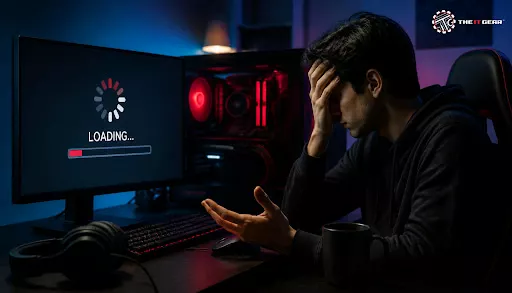
A gaming PC that was once able to run your favourite games in high settings without hitch can suddenly become an agony of low FPS and long loading times. For Indian gamers, this thing is quite common, most of all when the gaming rig is an expensive one where so many components are involved that the performance can become unpredictable.
Research reveals that about 60% of gamers reported that their gaming experiences got noticeably worse within two years of purchase. In many cases, performance drop-off was a result of software bloat or outdated hardware. Make sure to figure out which part of the system is actually causing the slowdown as the performance of the gaming PC depends on several factors like the GPU, CPU, RAM, etc.
Basically, your gaming PC is feeling slow because there is at least one component that cannot keep up with the modern game requirements. In most of the cases, the bottleneck comes from the CPU, GPU, memory, storage driver, or even from the software you have installed in the background. Once one element reaches its limit, the system in total will be slowed, which will translate into low FPS and stuttering.
For instance, if your CPU is maxed out whereas your GPU is only about half used, then the CPU is the bottleneck. Another scenario is when RAM is low, the system is forced to use slower virtual memory resulting in lags. Some of the main causes are not updating the drivers, components getting hot, viruses or malware, and hard drives being full.
If your gaming computer is showing symptoms of lag, it is very likely that you will come across one of these issues which are the leading causes.
1. Outdated Graphics Drivers
The graphics driver for a graphics card keeps on upgrading and optimisation is being done for new games so they can work better. Using an old driver can lead to game stutter and FPS lower plus crashes. You should look for the latest driver on their official websites of NVIDIA or AMD, and not via Windows Update only.
2. Overheating Components
If the temperature of your CPU or GPU is over 85°C in degrees Celsius, they start to throttle clock speeds to get them cool. This causes a big drop in FPS. Check the condition of the cooling fans to see they are not full of dust, renew the thermal paste of the CPU and make sure that there is an unblocked flow of air in the cabinet.
3. Background Processes Eating Resources
Scanning your system by the antivirus program, installing updates from your Windows operating system, and running tabs in the web browser can result in a high load on your CPU & RAM. To see which programs are using up CPU or RAM, open the Windows Task Manager by pressing Ctrl+Shift+Esc key on the keyboard and closing any programs that are unnecessary. Also, turn off any programs that start automatically once your PC is turned off.
4. Insufficient RAM
Some modern games recommend that you should have 16 GB RAM or above to play. So with only 8 GB RAM, micro stutter is very probable. On an average, an upgrade would cost you between ₹2,500 to ₹6,000 each if you get an 8 GB RAM module from reputed brands. Upgrading your computer memory is a very straightforward process and in fact is one of the least intrusive upgrades that could be done. You can explore DDR5 RAM options or DDR4 RAM depending on your motherboard.
5. Slow Storage Drive
The biggest difference one can experience with a PC is in loading times when it switches from an HDD (mechanical hard drive) to an SSD (solid state drive). One can even expect almost 70% shorter waiting times just after making the change. A 500 GB SATA SSD now costs an average of ₹4,000 in India. Consider options like the Kingston KC3000 PCIe 4.0 NVMe M.2 SSD or the Samsung 990 Pro 1TB NVMe M.2 Internal SSD.
If your PC is running a slow game and you think only that game is having the problem, you should double-check. For instance, you may be surprised to find that a weak GPU does not support an important part of graphics rendering like DirectX 12, and so newer games may run very badly if not outright unplayable.
Also, make sure your PSU's wattage is enough to power the components. A very weak PSU may trigger unstable voltage drops. Look for reliable options like the Corsair RM 850e Fully Modular White SMPS or the Cooler Master MWE 1050 V2 ATX 3.0 80 Plus Gold SMPS.
Lastly, use MSI Afterburner software to monitor your CPU and GPU usage. If the readings are nowhere near 100%, the chances are that this particular game was not optimised well. That may also explain why it does not use the hardware as efficiently. Usually, it happens in titles coming from the Early Access phase. As a quick solution, one can reduce the graphic level and update the game to the highest possible version.
After a game has been running slow on PC, there is a certain logical sequence that you need to follow to identify the problem:
1. Determine Your In-Game Settings
Start with resolution. Set it as low as you could manage. Then turn ray tracing off. Lower the shadows to their smallest size. Starting with a "Low" preset might be a good idea. As you are gradually increasing graphic quality, it's probably that at some point the frame rate drops dramatically, but you still like the picture. That's when you need to stop and save a setting balance.
2. Update GPU Drivers
Either use GeForce Experience or AMD Adrenalin as a vehicle to install new drivers for your graphics board. After the new driver has gone on, a fresh start is necessary.
3. Closing Overlays and Other Programs
Discord, Steam, and NVIDIA overlays can use up the GPU power and slow things down. Deactivating them through their respective menus should help to free up some computing power.
4. Malware Scan
Launch Microsoft Defender or a well-regarded anti-virus program and check your computer for the virus presence. Malware programs may run unnoticed in the background and take away the resources of the PC.
5. Clear a Game's Cache
Much like Windows caches programs and drivers to speed things up, many games keep a lot of temporary "cache" files that make the game start quicker the next time you play. Yet, if they become corrupted or there are too many of them, the game can become sluggish. So just delete the cache folder on the game's folder if it still doesn't run.
6. Fix Game Files
With the Steam and Epic Games clients, you can repair game files if needed and this option is very likely to bring a solution. Simply press "Verify Integrity of Game Files" to repair broken or missing assets.
A great tip sheet to quickly tackle some of the worst gaming performance issues:
Performance issues on a PC used for gaming can very often be fixed by combining software and hardware approaches. Begin with the first steps that are cost-effective and later, if you want, replace your components at a reputable store like The IT Gear with ones that have a track record. With the right methods, you can get high-FPS gaming that won't make you spend a fortune. If you are looking for a complete system, explore our range of pre-built gaming PCs that are ready to deliver top-tier performance out of the box.

Why is my gaming PC so slow all of a sudden?
It is not uncommon for the sudden slow down of a PC to be a result of the installation of a new feature by Microsoft Windows, or of the driver being broken after being updated. It's even a possibility that due to accumulation of dust on the PC fans, the fans weren't able to cool it, and as a result, the CPU throttled itself. To figure it out, check first Task Manager to find out what's causing the system slowdown and then your CPU and GPU temperatures.
How do I fix a slow gaming PC without spending money?
Here are a few options: you can try reinstalling all of the device drivers, stop any applications running on startup which you do not use, use the disk cleanup function, and lower the video settings of the selected game. One last thing is that you could also change Windows power plan to "High Performance" via the Control Panel.
What causes FPS drops in games?
One of the most common reasons for FPS drop is that your CPU/GPU usage reaches 100%, you have overheating issues, or not enough RAM. You can use a monitoring software (like MSI Afterburner) to figure out which part of the system is reaching its maximum. For more detailed insights, check our article on GPU bottleneck solutions for Indian gamers.
How to check if my PC is bottlenecking?
You can launch your favorite game and open MSI Afterburner or similar software at the same time. That's a very useful way of figuring out bottlenecks. The idea is that if one of the components (say CPU) is being fully utilized while the second one is being used, e.g. 60%, we can say with fair certainty that the under-used second component is creating a bottleneck.
Does upgrading to an SSD improve gaming performance?
Sure! It really helps you get rid of those annoying long load times and not only that, it also allows more textures to appear gradually which you might have noticed in certain games with big open worlds. The only problem is that the FPS does not go up directly, but it means faster assets can be streamed, which makes things appear as if everything is smoother. For a deeper dive, read our guide on gaming PC storage in 2026: how much do you really need





#No. 9, 5th Floor, Max City Center, T. P Lane, Sadar Patrappa Road, Bengaluru - 560002 (Karnataka)