






Select a category

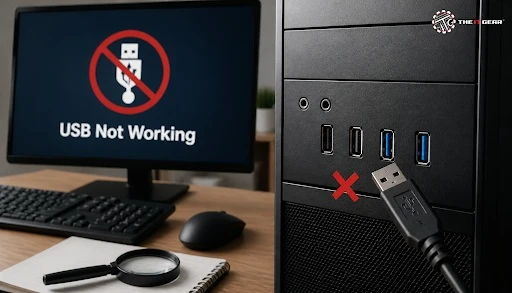
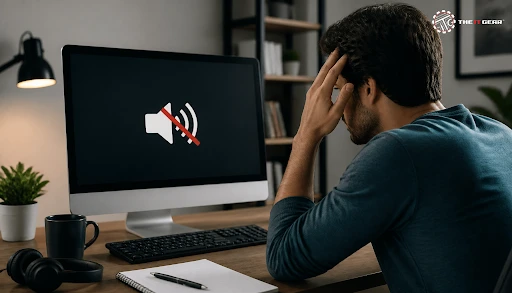
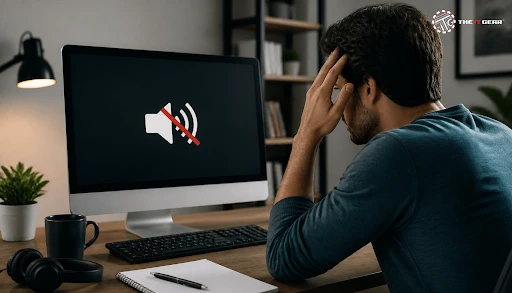
A dead USB port on a desktop may as well be a useless brick: no mouse, no keyboard, no pendrive. Quite often the fault isn't a dead motherboard but a loose connection, a power-saving feature, or a bug in the driver. If the problem points to deeper hardware trouble, a professional computer repair service can diagnose it safely. Read this tutorial to find out how to fix USB port problems on desktop PCs.
When USB ports are not working, Windows may show no power, display an error like "USB device not recognized," or the device may disconnect randomly. The fastest way to diagnose the issue is to separate the port from the device and cable.
1. Try the device on a different computer. If it works on a different computer, it is likely the desktop port or its driver that is causing the problem. This quick step saves you from replacing drivers at random.
2. Test a different port and eliminate hubs. Plug the device into a rear port; this rules out unpowered hubs, docks, or extension cables. The rear ports are directly connected to the motherboard.
3. Try a different cable. Before assuming that your port is dead, try replacing the USB cable or charger. Wear and tear on the cable is very common in pendrives and smartphones.
This indispensable diagnosis builds every subsequent resolution on it, simply because it shows whether to deal with hardware, power, or driver issues.
Almost all "fix my USB ports" solutions can be completed without even opening the desktop. It pays to start with a clean reboot, simple Windows tools, and power options before getting to any internal connections. If the quick checks still leave you stuck, a computer repair service can verify the hardware.
What should I try first when USB ports stop working?
1. Restart it the way you want it. Fully shut down, Shift + Restart rather than sleep. Sleep can store a hung USB controller in memory.
2. Right-click Start, and then open Device Manager. Open the section "Universal Serial Bus controllers." Right-click each USB Root Hub and select Update driver or Uninstall device.
3. Update Windows. Look for optional driver updates like chipset and USB controller updates. Windows 11, Windows 10, and even older versions have different menus but follow the same principle.
4. Verify USB Power Management. For each USB Root Hub properties, disable "Allow the computer to turn off this device to save power" under Power Management. Also disable USB selective suspend in Power Options.
5. Disable Fast Startup. From the Control Panel, navigate to Power Options and disable fast startup. Disabling this forces a full hardware initialisation process during shutdown.
What if I need to replace my cable or hub? The IT Gear has a large range of PC accessories available online—please see device specifications for compatibility before ordering. These solve most software-side USB problems at no repair cost.
A broken USB port may be loose with a wobbly connector, bent, or covered with dust. Or it might only function at an angle. Also, your desktop should have built-in, front-panel USB ports attached via a header on the motherboard.
Front USB ports not working Windows 10
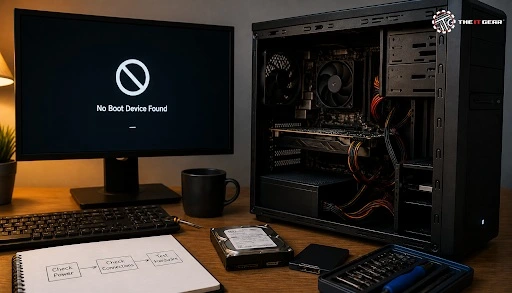
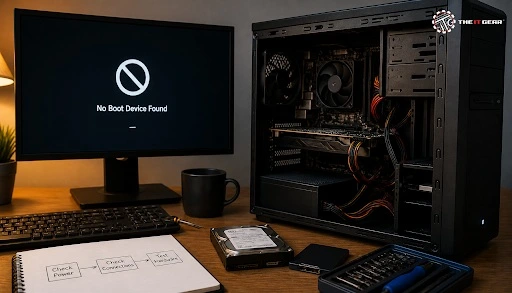
USB ports on the front of Windows 10 not working is almost surely a problem with the internal header on the front panel. Turn off and unplug the PC, take the side panel off, and trace the cable from the front panel to the motherboard header. It should be labelled "F_USB" or "JUSB."
Gently press the 9-pin USB 2.0 or 19-pin USB 3.0 header back into its socket. Look for dust or bent pins, or a loose joint on the solder—if the header's damaged, the rear ports should be unaffected.
If all USB ports stop working at the same time, the issue is typically not limited to a single port. Common causes include a corrupted driver, an incorrect BIOS setting, a problem with power delivery, or a shorted device. Although it is less frequent, a complete failure of the USB controller can also occur.
Is it a software, BIOS, or power problem?
1. Software issue. Outdated or corrupted drivers for your USB host controllers or a recent Windows update could prevent all ports from working. Boot into Safe Mode, use System Restore, or uninstall the USB controllers and restart.
2. BIOS/CMOS issue. See if "Legacy USB Support" or "xHCI Hand-off" option in BIOS is enabled. If you find USB disabled in the BIOS, reset CMOS using the CR2032 battery or CLR_CMOS jumper.
3. Power or hardware problems. The bus can be killed if a power supply 5V rail is under strain, a USB device shorts, or an onboard chipset fails. Disconnect all USB devices and retest.
This is the critical decision point before forking out for repairs.
How do I update USB drivers?
USB driver updates come in three flavors: Windows Update, Device Manager, and motherboard chipset drivers. Do them in that order for best results.
Which driver update method should I use?
1. Windows Update. Head to Settings, look for updates, get into Advanced options and Optional updates. Get any driver updates you find.
2. Device Manager. Expand Universal Serial Bus controllers. Right-click each of the controllers, and then select Update driver. If necessary, you can select "Let me pick from a list" to select a generic driver.
3. Motherboard chipset driver. Go to your motherboard manufacturer support page and download the latest chipset package. This can often fix USB enumeration issues following a clean Windows install.
Windows 11 forces new driver management and supports USB4/Thunderbolt, so a "USB device not recognized" error could be due to a cable, port, or power setting. Begin with the basics by resetting first before changing drivers.
What Windows 11 settings usually help?
1. Reconnect to a rear port. Don't use any hubs or front-panel ports when testing. Now, in Device Manager, click View > Show hidden devices.
2. Delete Unknown devices—remove the "Unknown Device USB" or "Device Descriptor Request Failed" under "Other Devices" in Device Manager, then reboot. Windows will give us the driver back.
3. Examine power and Fast Startup. Turn off Fast Startup and disable USB selective suspend. If the problem occurred after a Windows 11 update, remove that update or reinstall the chipset driver.
If your pendrive isn't detected, there's still a good chance your port is healthy—the problem could be the drive letter, the file system, or the drive itself. Look at Disk Management before formatting anything.
Should I check Disk Management first?
1. Try the pendrive on other systems. Try it on a different computer and other ports. If it works there, the desktop port might be at fault.
2. Open Disk Management by pressing Windows + X and selecting Disk Management. If the drive appears without a drive letter, assign one. If it is listed as "RAW" or "Unallocated," do not format the drive until you have backed up any important data.
3. Be cautious with `chkdsk` and `diskpart`. Check the drive with `chkdsk` for file-system errors. Only use `diskpart` if you're familiar with its commands, as it can wipe out the drive.
A systematic test saves time and prevents superfluous repairs. Most USB-related problems are resolved with a test device, updated drivers, power management parameters, or internal wiring. If you want to upgrade your equipment, The IT Gear supplies PC peripherals and parts; before you buy, visit the website to find the right equipment.
Can I fix USB ports not working on a desktop computer without restarting or reinstalling Windows?
Yes, some of the time. Change to another port, disconnect hubs, reconnect the cable, and refresh the driver in Device Manager. Disable Fast Startup and disable USB selective suspend.
What is different about USB ports not working in Windows 7 and Windows 10?
Some fixes are carry-overs from the older Windows 7 Device Manager/Control Panel routes, while Windows 10 has newer power options and Fast Startup. The fixes themselves are identical: test, drivers, and power.
Do I need to open the PC case to fix a broken USB port?
Not necessarily. In a bit, begin with software, cords, and back ports.
Open the case only if the front USB ports are the only ones not working, if you think the front-panel header might be loose, or if you need to check for physical damage to the ports.
When should I stop DIY repairs and seek professional help?
Stop if you notice burn marks, smell of burnt electronics, or if all ports don't work after clearing CMOS and plugging in a good device. A computer repair service can safely test the PSU 5V rail, chipset, or motherboard USB controller.





#No. 9, 5th Floor, Max City Center, T. P Lane, Sadar Patrappa Road, Bengaluru - 560002 (Karnataka)