












Select a category

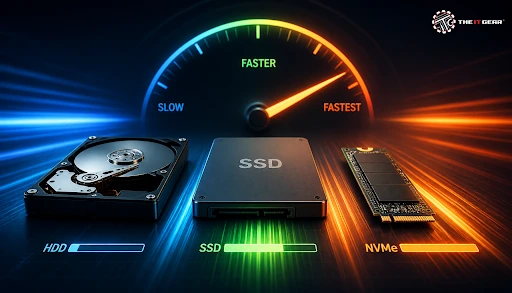
We read and write at roughly 80 to 100 MB/s at the speed of a hard drive. An SSD in one of those laptops with modern design would give about 500 MB/s, and a solid-state NAND-based drive can break 5,000 MB/s. In academic terms, they can only compare it with 3 to 5 times an HDD’s read/write speed on matched sequential files. Still, most people are not aware of the read and write speed of their drives because the numbers printed on the box are just marketing figures.
An SSD Read and Write Speed Test reveals the truth and is a fast way to know your drive speeds. This guide shows you the meaning behind all these numbers, the best ways to test them, and most importantly, tells you what is considered good enough in the cases below.
The test will mainly focus on the performance metrics of the storage, in particular, the transfer rate, and response time in a given period of time, not based just on the figure printed on the packaging. Benchmarks use files of known size to read/write to storage and measure how fast it happens.
What Is Read and Write Speed in an SSD?
1. Read speed – The speed of retrieval of the data stored on a storage drive refers to read speed. The read speed defines the time a Windows system or a game, or for that matter, an application would require to boot up the device.
2. Write speed – It refers to the speed with which the SSD gets data and writes it into itself. It plays a role in saving files, folders, copying data, games being installed, or movie exports being done. For heavy video work, see this guide to storage solutions for video editing.
3. Storage speed can be understood in two different ways – as a MB/s speed, or as latency where it states the time a file takes to be copied or saved. The same hardware is being described by both framings, and benchmarking software generally outputs data from them both.
4. Three hardware limitations that can be the reason for such ceiling levels – the NAND flash memory (the physical storage), the SSD controller (the read, write and leveling manager), and the interface (SATA or NVMe over PCIe) that transfers the data between the storage and computer.
In most cases, read speed is higher for the same storage, and the reason is physical.
1. Reading is sensing: Reading a file means detecting whether the cell of the NAND flash already holds a charge. The NAND cell is just being read, not modified. That is a measurement, not a change.
2. Writing is programming: Writing a file means programming it (a new cell gets a new charge) on the flash. There are technical reasons for this – in reality flash devices cannot overwrite data stored in-place, so if a file is changed then a whole block needs to be erased before writing it back on a fresh one. Garbage collection and write amplification generate unwanted work.
3. The exception is the SLC cache: A fast cache that temporarily allows writes to almost reach read speeds. After it is full, write speed drops sharply, and an advertised speed of 5,000 MB/s may only be 1,000 MB/s for a transfer that lasts longer. Drives like the Samsung 990 Pro 1TB NVMe M.2 SSD are rated in this high-speed class, but sustained performance depends on cooling and workload.
The printed figure and the actual speed are rarely the same as all of them affect each other: firmware, thermal management, drive fill level, and background apps. Because of this, a correct storage speed test must be done in two ways: what is exposed by the operating system and what the specialized test tool reports.
How to find out SSD speed on Windows without installing a third-party program
1. Task Manager: A task manager is used first. Here select the Performance tab and then choose Disk. It is a tool to view live activity percentage, response time, and active time; but, no information on the actual throughput capability is displayed in this method.
2. PowerShell: The command `Get-PhysicalDisk` at the PowerShell terminal shows a complete list of model details and health for physical disks. This is mainly relevant where one would need to verify whether a drive is running off an internal SATA or an external NVMe interface.
3. Device Manager: Under the list of Disk drives, open a drive's properties and find out from the Volumes tab its capacity and partition details.
Running an SSD Speed Test With a Benchmark Tools
1. Use a recognised tool – CrystalDiskMark, AS SSD, and ATTO are the standard benchmarks, and CrystalDiskMark reports sequential and random 4K results in one run.
2. Close everything else first – Background jobs, like updating software, syncing content, and scanning with antivirus software can cause benchmarking results to be unreliable, and in that case, you are well advised to run the benchmark twice and compare the scores obtained.
3. Read the right lines – Look at the lines that have numbers for reading or writing, where for the largest copies of files reading and writing in sequence are relevant. But, the random 4K read and write in operations per second are the ones that actually affect the startup time and overall behavior of the system, and that is why they matter more than just the number of MB/s in the headline.
Read/Write Speed vs Transfer Speed
A benchmark will assess the drive while a file copy will assess the complete chain. You may, for example, be copying from a 3,500 MB/s NVMe drive which has a very low chance of being slower than any of the other drives if you copy to either the internal drive or an external one which has the slowest part of the chain. It is likely the destination being the slowest link. If you are moving data to an external setup, a storage enclosure or a fast external drive can prevent the destination from becoming the bottleneck.
It depends solely on which class of drive you are talking about, since the speed limitation is usually the interface that gets saturated much faster than the NAND. See this table for how to place the result; also take into account that the real speed will typically be 10 to 15 percent lower than the advertised speed.
It sure is. 3,500 MB/s roughly corresponds to the highest practical read speed of a PCIe Gen 3 x4 NVMe drive and this speed is plenty for an operating system to run quickly and efficiently or games loading to a bare minimum. If you don't regularly move large video files or run virtual machines and databases, then there is no need for more speed. A Gen 3 NVMe drive such as the WD Green SN350 NVMe 250GB can still feel responsive for everyday use.
5,000 MB/s is fast enough for most users and places the drive in the PCIe Gen 4 class, a mainstream sweet spot for the performance-to-price ratio. The warning – it runs hot and will thermally throttle without a heatsink. So, an air-cooled drive that delivers sustained 5,000 MB/s performs better than an uncooled drive which reaches higher speeds briefly then throttles. For a comparable Gen 4 option, the WD Blue SN5100 1TB NVMe Gen4 SSD is built for this tier. If throttling is a concern, this guide to thermal throttling explains how to keep temperatures under control.
For gaming, read speed is the key because the storage continuously transfers textures and game assets to the system during the game session while the drive does not perform any major write operations except during installing games or saving, and caching shader compilations.
A survey has shown a consensus of opinion on the internet, a few forum members say that players who are satisfied with the load times on Gen 3 drives can still play quite fine even with load times from Gen 4 drives. Yet, when making a choice between Gen 3 and Gen 4 it is the lower latency that matters most besides the NVMe, rather than the highest peak bandwidths. For a deeper comparison, see SSD vs HDD for gaming.
Also, one needs to consider capacity and DRAM cache in the drive before going for the one with the biggest number on the box only. Run the same type of benchmarking that you did the first time around and crossmatch your figure for the sequential read with the tier table. If you are planning a new build, this guide to gaming PC storage can help you balance speed and capacity.
The NVMe protocol is the one where a disk can communicate with the CPU directly without a host controller which is why it is faster compared to SATA.
M.2 SSD Read Write Speed
1. M.2 is the size and shape of a disk and not the speed, it refers to the slot and the 2280 stick size, not the interface beneath it.
2. You can find great differences between two M.2 drives, a SATA M.2 drive is limited to approximately 550 MB/s, whereas an NVMe M.2 drive in the same slot can go over 5,000 MB/s. For example, the Kingston NV3 1TB M.2 NVMe Gen4 Internal SSD is an NVMe M.2 drive, while a SATA M.2 model would sit near the SATA ceiling.
3. Don't upgrade your drive unless you have checked the lanes and generation of PCIe. If your computer only supports Gen 3, then a Gen 4 drive will get throttled to Gen 3 speed if put in a Gen 3 slot only. Therefore, you should match the drive with what your motherboard supports. This motherboard specifications guide can help you confirm PCIe generation and M.2 slot support.

1. First, classify your drive, e.g., HDD/SATA SSD/NVMe, and which PCIe generation.
2. Find out for sure what kind of bus/interface your drive has, do not make any assumptions and use PowerShell `Get-PhysicalDisk` to check out the interface.
3. Carry out a standard benchmark tool test twice and make sure that you do not have any running background programs that can interfere with your disk performance results.
4. Match your sequential read figure with the tier table of your disk type that we provided in the example.
5. Compare random 4K IOPS for a better feel of how it will function in real situations. It is about the performance in real life situations rather than just the numbers on the disk spec sheet.
6. Carry out a test for sustained disk writes not only of an isolated high peak.
7. It is a good practice to run and test your drive at idle and then to test it while the drive is under heat and thermal throttling. If temps are high, thermal paste replacement or better airflow may help the rest of your system, though many NVMe drives rely on their own heatsink or motherboard shield.
A performance evaluation of your SSD for the read/write speed is very helpful in determining whether the storage is the bottleneck holding your system down or delivering as expected. Once you have learned about your storage class, what it actually is doing with the real numbers, you will be better informed of its performance.
In case your performance is much lower than the level of your drive or if you are still using a mechanical drive, The IT Gear offers SSDs in both SATA and NVMe M.2 types, so that you can select the appropriate drive for your system and budget before making a purchase. You can also explore SSD options directly if you already know which interface your system supports.
What does write speed mean on an SSD?
It is the speed at which a drive can take new data, measured in MB/s. The announced write speed often represents the SLC cache burst, so prolonged writes may have quite low speeds.
What read write speed is good for my SSD?
This will depend on your interface. Approximately 550 MB/s for SATA, 3,500 MB/s for PCIe Gen 3, and 5,000–7,000 MB/s for PCIe Gen 4.
Can I Test My SSD speed without installing software?
Yes, it does display the current disk activity in the live Windows Task Manager as well as the response time. Yet it does not provide the exact sequential throughput as a benchmark does.
Is it my SSD that is slower than advertised?
A number of typical issues can result in this – a drive almost full, the slowdown due to the high temperatures, running background processes, a Gen 4 SSD fitted into a Gen 3 slot, or reading the sustained figure rather than the burst one.





#No. 9, 5th Floor, Max City Center, T. P Lane, Sadar Patrappa Road, Bengaluru - 560002 (Karnataka)






Looks like you haven't added anything yet. Explore our builds, components and gear.
Continue shopping