




Select a category

Building a computer manually is quite thrilling, but when you come to a page where the motherboard is displayed with its characteristics, words like chipset, VRM, and PCIe can be so confusing. In essence, a motherboard specification refers to a board's list of hardware that it supports and its structural design. When you master reading motherboard specifications with no difficulties, you become aware of incompatible parts, and you're able to buy suitable ones for each other.
In essence, the specification sheet of a motherboard is like a manual stating clearly which hardware the board is fitted with or can accept. It is the CPU socket, chipset type, and capacity of RAM, expansion slots, and the connectors of the storage devices, power supply, and back I/O ports that are listed on the specification sheet. These technical specifications also describe the size of the board, that is, the form factor of the motherboard.
The main features to look at are CPU socket, the generation of chipset, number of RAM slots, and supported memory type (like DDR4 or DDR5), PCIe slots, support for M.2 and SATA storage, ports availability of USB and networking, as well as the power delivery VRM design. Together, these pieces of information tell whether the components like the CPU, the graphic board, the RAM, the storage drives, and the PC case you select could get you a functional PC.
So, when one has a motherboard that matches the other components, assembling the whole PC is much easier than trying to figure out the issues of the system.
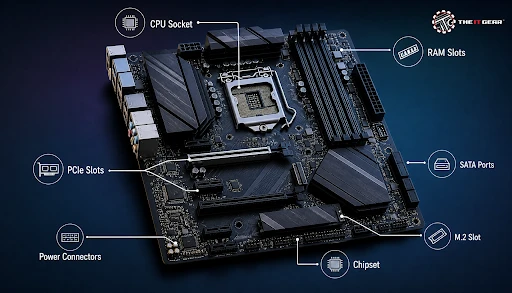
If you know that most physical parts are the same across most motherboards, you will easily be able to grasp the motherboard structure. Essential parts that are common to any board comprise the CPU socket, the chipset cooler, the VRM supply modules, and RAM slots. The board also offers PCIe x16 slots for graphics cards, much smaller PCIe x1 slots, M.2 sockets for NVMe drives, and SATA ports.
Auxiliary power parts mainly include the ATX 24-pin connector, the 4-pin or 8-pin connector for the CPU. The rear panel of an I/O houses USB, Ethernet, and audio jacks, and HDMI/DISP ports. The parts that are almost always there include the CMOS battery, the BIOS chip, a series of the front-panel connectors, fan connectors, lighting connectors, as well as the debug LEDs.
Although budget boards might not have all these features, being able to recognize them on one hand and reading the motherboard specs on the other helps you visualize the physical features you are reading about while looking onto the computer part.
It's easier without stress if you follow the right path when it comes to motherboards' specs, and it's better if you do not read them all straightaway. To begin, you identify the CPU socket and the chipset - these two determine whether your CPU is compatible, i.e. the AMD AM5 motherboard will be suitable for a Ryzen 7000 processor, whereas for the Intel 12th and 13th Gen Core processors, you will require a motherboard with the LGA1700 socket.
Make sure that the motherboard's form factor is suitable for your case. The larger the motherboard, the bigger must be the cabinet housing it. That's why an ATX motherboard goes only with mid or full-tower cabinets. Micro-ATX and Mini-ITX motherboards are more versatile since they allow you to use them in smaller cases.
Then you have memory compatibility. These days, most boards support DDR4 and DDR5. The physical design is slightly different, so you cannot mix the two. At last, you will need several PCIe slots for your video card and some M.2 and SATA ports for your disks.
A neat idea is to look at the type of chipset like B650, X670E, B860, and Z890, as they have their own features, and the choice largely depends on your usage. B-series boards are the most appropriate for ordinary users, but X and Z series, although they are more pricey, are packed with overclocking functionality and high-speed data transfer options.
If you are a little curious as to what motherboard you have inside your PC, there is no need to get in there and open the box. The most simple way is to click System Information under Control Panel and look at BaseBoard Manufacturer, BaseBoard Product fields.
CPU-Z is another great choice, as a free, no-frill diagnostic utility for getting motherboard information like, but sure not limited to, model number, chipset type, BIOS version, and physical memory setup. You can also visually check the board itself which in most cases has the model name stamped at the front, usually near the CPU socket or in the space between slots (e.g., between PCIe slots).
Besides, for a prebuilt machine, the documentation and the website support of the manufacturer should provide a list of motherboards originally used.
.webp)
Before you buy any motherboard, run through this quick checklist of the specifications that matter most.
With this little exercise done, you will have already made it to the stage of selecting suitable motherboards for your gaming system, workstation for content creation, or economical office PC. Selecting the motherboard is a matter of checking first compatibility and then the features.
Buying the right motherboard comes down to checking compatibility first and performance features second. If you are looking for a reliable motherboard in India, The IT Gear offers a wide selection of models across popular chipsets, with detailed specifications listed for every product. Whether you're exploring AMD chipset options or Intel chipset boards, you'll find comprehensive motherboard comparison guides to help you decide.





#No. 9, 5th Floor, Max City Center, T. P Lane, Sadar Patrappa Road, Bengaluru - 560002 (Karnataka)