



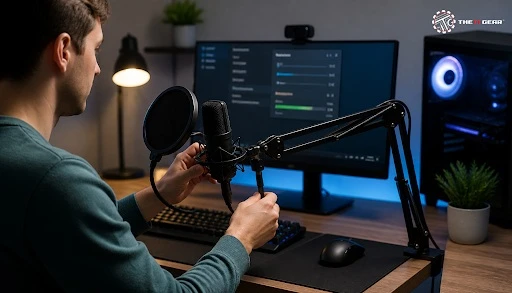
Microphone PC Setup Guide: How to Configure Your Microphone
18 Oct 2026

Microphone PC Setup: The Complete Guide to Getting Your Mic Working


How to get a microphone PC setup working? You need to plug your mic into the right port on your PC, set your Windows audio settings so Windows knows it's there, then be sure that your PC is actually picking up input from the mic.


What Does a Microphone PC Setup Involve?


Per a 2024 survey by Statista, more than 60 percent of Indian remote workers use voice and video calls each day, so a working microphone isn't a nice-to-have — it's a necessity. Whether you're on a Zoom call, recording a podcast, or chatting with your friends in Discord, you want a microphone that works.


Your microphone type determines how you set it up. You can use a USB microphone immediately, and if you have an analog microphone with a 3.5mm jack you just need to connect it properly and do a few tweaks in your software. An XLR microphone needs an audio interface.


What Are the Different Types of Microphone Connections?


  • USB Microphones: These plug directly into a Windows-based PC's available USB ports, taking no time at all to be recognized by the Windows operating system. With nothing passing through the PC's built-in sound codec, this eliminates many compatibility issues and produces a clearer sound. Most only require plug-and-play.
  • 3.5mm Analog Microphones: They are compatible with most desktop and laptop connections with traditional audio jacks. That is a pink port (microphone) and a green port (headphone) on most desktops, and a single combo port on most laptops. You will need to find out which connection your computer has before plugging in.
  • XLR Microphones: Professional microphones that can only connect to your PC using an audio interface or mixer. The audio interface translates the XLR's analog signal to a digital USB audio signal your PC can use. This brings the highest quality, but also calls for more equipment and setup.


Understanding these connection types forms the basis of any microphone PC setup and influences every step that comes after.


Do I Plug a Mic into a PC or Monitor?


This is one of the top questions we get from users when they are setting up their sound gear and the answer is simple: the microphone input does not go on the monitor, it goes to the PC. If your monitor has a 3.5mm jack, it likely has a headphone jack for HDMI/DisplayPort audio passthrough.


If you connect a microphone into a monitor jack, the monitor will not do anything to it, since it cannot process a microphone signal except for the webcam's individual USB microphone if the monitor's USB port is active through the monitor's USB hub.


Where Is the Microphone Port on My Computer?


  • Desktop PC Back Panel: Keep an eye on the pink coloured 3.5mm jack on the back of your PC. Like many colour conventions in computers and peripherals, this colour scheme can be traced back to the IBM PC era, which set the standard for microphone input. If your PC has a dedicated sound card, the pink socket will be on its bracket.
  • Desktop PC Front Panel: There are some cases that include front-panel audio ports, very common being a pink port for your microphone and a green port for your headphones. These ports are connected to the motherboard through an HD Audio header, which makes them operate just like the back panel ports when wired correctly inside the case.
  • Laptop Combo Jack: Many recent laptops feature a single TRRS combo jack that supports both microphone and headphone functions through one port. This port is usually identified by a headset icon instead of separate color codes. Plugging a TRS microphone into a TRRS jack might cause improper operation, as the connector pin arrangement is different.


Knowing the exact location of your microphone port is critical before attempting any software configuration.


How to Plug In Microphone to Your PC: Step-by-Step


The hardware connection is the foundation of most setup issues, but it's also the simplest once you know what to look for. Based on investigations conducted by audio equipment makers, as much as 40% of "microphone not working" complaints are caused by using the wrong port, or an improperly connected cable. Double-check your hardware before you start tweaking Windows. A few seconds of forethought can save hours of frustration later.


How Do I Connect My Microphone Physically?


  • Determine Your Microphone Type: Find out if your mic uses a USB plug, a 3.5mm jack, or an XLR plug. That's which port on your PC you should plug into. A USB mic can plug into any open port, while a 3.5mm mic needs the pink audio jack.
  • Connect USB Microphones: Connect the USB cable directly into any USB port on your PC. Windows will recognize the device and install common drivers. You should see a notification that a new audio device has been connected. For best results, use a USB port directly on the motherboard rather than a hub.
  • Connect 3.5mm Microphones: Match the pink color-coded plug to the pink jack on your PC. If you have a single TRRS-style plug that combines both the microphone and headphones, connect it to the combination jack on your laptop or a TRRS-style jack on your desktop. Fully insert the connector until it "clicks" into place.
  • Use an XLR Microphone: Connect the XLR cable to the microphone, then plug the other end into your audio interface. Connect the audio interface to your PC by using a USB cable.


Install any drivers that came with the interface before proceeding. After it is physically coupled, your microphone PC setup enters the software phase.


How Do I Set Up a Microphone on My Computer?


Configuring Windows to recognise and use your microphone is where your computer microphone setup becomes functional. Windows 11 and Windows 10 both provide straightforward audio settings, but the exact steps vary slightly between versions.


Microsoft reports that audio input issues rank among the top five support queries, which is why they have simplified the process in recent updates. The goal is to ensure Windows sees your microphone, sets it as the default input device, and applies appropriate volume levels.


How to Configure Microphone Settings in Windows?


  • Access Sound Settings: Right-click the speaker icon in your taskbar and select "Sound settings" or navigate to Settings > System > Sound. This opens the audio configuration panel where all input and output devices are listed. Windows 11 shows this in a more visual format than Windows 10.
  • Choose your input device: In the "Input" area, click the dropdown menu and pick your microphone. If you don't see it listed, click "Manage sound devices" and select the microphone from the list of available (and currently disabled) microphones — you might have to turn the microphone back on to get it to show up.
  • Adjust Input Volume: Speak into your microphone and observe the input level bar. If the bar moves very little, raise the volume slider. If it reaches the maximum often, lower it. Try to set the level so it reaches around 75% when you speak at a normal volume. This helps avoid both low audio and distortion.
  • Test Your Microphone: Use "Test your microphone" in Windows 11 or select the "Listen to this device" checkbox in Windows 10's Sound Control Panel. Say something in the microphone, and make sure you can hear yourself through the speakers or headphones. That confirms your microphone PC setup is working.


Correct setup guarantees your microphone performs reliably.


How to Use an Earphone Mic on a PC?


Using your earphone microphone with a PC is common but often problematic because earphone mics are designed for smartphones, not computers. The main issue is the difference between TRS and TRRS connectors. Electronics retailers report that TRRS adapters and splitters are among the most purchased audio accessories, since many users discover this incompatibility after buying earphones. Understanding this difference can save you from returning equipment that actually works fine.


Why Does My Earphone Mic Not Work on PC?


  • TRS vs TRRS mismatch: Regular earphones with a microphone use a TRRS (Tip-Ring-Ring-Sleeve) connector with four contacts. Older PCs and a lot of the desktop mics use separate TRS ones with three contacts. This means that inserting a TRRS earphone jack into the microphone's TRS socket stops the mic signal from hitting the proper contact.
  • TRRS connectors: Most laptops and some desktops have combo jacks that accept TRRS connectors. If your PC has a headset jack that's just a single outlet marked with a headset symbol, your earphone mic will work if you plug it in. Desktop PCs with separate pink and green jacks need a TRRS-to-dual-TRS splitter cable.
  • Using a Splitter Adapter: A TRRS splitter divides the single TRRS plug into two TRS plugs—one for the microphone (pink) and one for headphones (green). Plug the microphone connector into the pink jack and the headphone connector into the green jack. This setup allows earphone microphones to function on desktop PCs that have separate audio ports.


After the audio jack is properly connected, set up the earphone mic in Windows Sound preferences like you would for a regular microphone.


Troubleshooting Common Microphone Issues


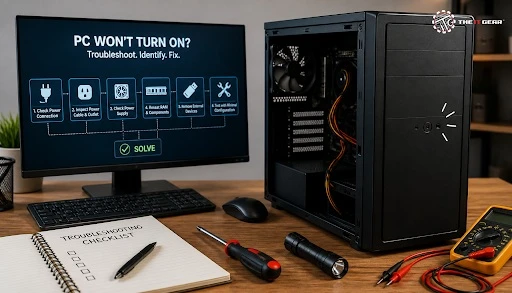
Sure, you've got the mic PC configured correctly but it's still not working. Common Windows updates, driver issues, and privacy controls regularly muck up the mic. Based on a report from Microsoft in 2024, about 15% of all reported audio problems were related to privacy settings blocking access to the mic. Fix these first!


Quick Fixes for Microphone Not Working


  • Verify privacy settings: Go to Settings > Privacy > Microphone and toggle on the switch next to "Allow apps to access your microphone". Also check individual app permissions, which could be isolated. If this is off, apps can't use the mic even if it's not defective.
  • Update your Audio Drivers: Open Device Manager, expand "Audio inputs and outputs", right-click your microphone, and then select "Update driver". This is a common problem that can be caused by outdated audio drivers, so make sure your drivers are current. You can do this through Windows or if no update is found, visit your motherboard or laptop manufacturer website.
  • Run the Audio Troubleshooter: Settings > System > Sound > Troubleshoot common sound problems. Windows will automatically check the audio configuration and fix any issues it detects. The troubleshooter will automatically fix many common issues.
  • Disabling Audio Enhancements: Go to Sound Settings. Select your microphone and go to Properties. Under the tab titled "Enhancement" you will find a toggle for all audio enhancements. Some of these enhancements can cause problems for your microphone.


Most of these problems are resolved for Windows PCs by following the above steps.


Final Checklist for Your Microphone PC Setup


  • Confirm your microphone type: USB, 3.5mm, or XLR.
  • Connect your USB mics to any USB port. Connect your 3.5mm mics to the pink jack.
  • Use a splitter for earphone microphone with desktops that have separate jacks.
  • Sound input (microphone) got a mic? Make it the default! In Sound settings: Under input select your mic if it isn't set.
  • Set input volume so that it peaks at around 75% when speaking.
  • Allow microphone access in Windows Privacy settings.
  • Update your audio drivers in the Device Manager.
  • Test your microphone before joining important calls.


With the right microphone setup, your PC can go from a silent work PC to a full broadcaster. The IT Gear offers a large selection of USB microphones, audio accessories, and connection adapters to cater for all setups and budgets, making it easy to get your audio right the first time.


Frequently Asked Questions


Is building a PC cheaper than buying one?


If you are on a mid-range or high-end budget, then you will definitely get the most value here, since you can buy the individual components and avoid the OEM surcharge. Smaller budgets may find low-cost prebuilt computers more affordable. Once again, factor in your skills, budget, and post-sales support requirements. You can also compare options in our prebuilt vs assembled PCs guide.


How much did the first IBM PC cost?


The IBM Personal Computer Model 5150 was introduced in August 1981 with a base price of about US$1,565. A usable system including a monitor and disk drives required a higher investment. When adjusted for inflation, this amount equals several thousand dollars today, illustrating the relative affordability of modern personal computers.


Can I build a PC with no experience?


Yes, anyone can build a PC without experience if you use the right guides and take some simple precautions. Learning the tricks of handling the hardware without electrostatic discharge, applying the thermal paste properly, and connecting all the front-panel headers are some of the basics. You can expect a first-time PC build to take between three to six hours. For more help, see our guide on avoiding common PC building mistakes.


What is the full form of a PC?


PC, for Personal Computer, which is a general purpose computer intended for use by an individual. The use of the term PC became standard following the release of IBM's Personal Computer in 1981. In typical usage, PC also is used to refer to a computer running the Microsoft Windows operating system rather than a Mac.


What does PC full setup include?


A complete PC setup includes the computer itself plus all peripherals: monitor, keyboard, mouse, speakers or headphones, webcam, and microphone. The setup process involves physical assembly, operating system installation, driver updates, and configuring each peripheral. Your microphone is one essential component of this complete configuration. For component guidance, read our beginner's guide to gaming PC components.


How do I know if my microphone is working?


Open Windows Sound settings and then speak into your microphone while watching your input level bar. If you see the bar move, your microphone is working. Alternatively, test your microphone in Windows 11 with the "Test your microphone" option or record a short voice memo.




4
Google
★★★★★
4.8 out of 5
Cart

Your cart is currently empty

Continue shopping
×
Need Assistance?