






Select a category

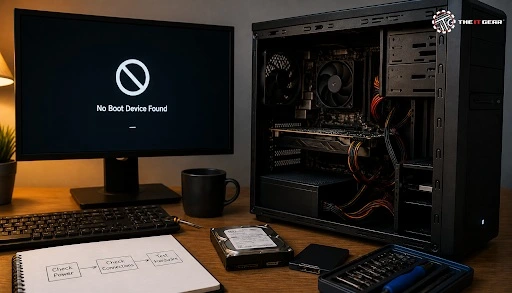
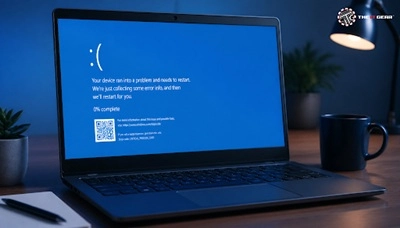
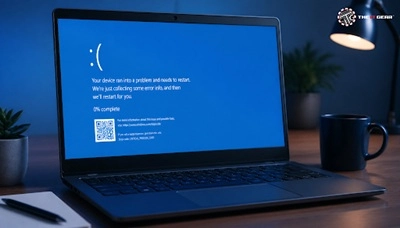
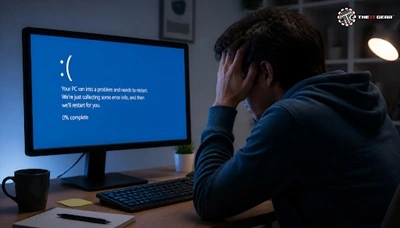
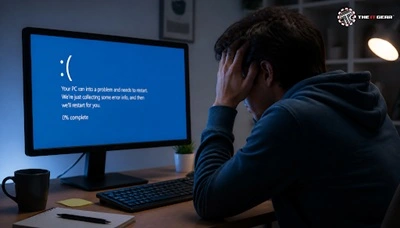
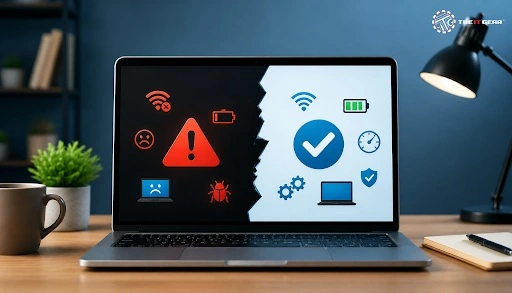
Nothing makes a PC user more anxious than a black screen at startup — and it’s almost never the end of your computer. Almost all boot failures are due to a peripheral conflict, a rogue power state, a bad update, or a bad boot record (and every one of those is fixable). If your PC won’t turn on, start with the non-destructive checks below before assuming the worst. This article gives you a working “PC won't boot” solution in the order a tech would use, so you address the cause before touching your files; if you’d rather have a professional handle the diagnosis, a computer repair service can help.
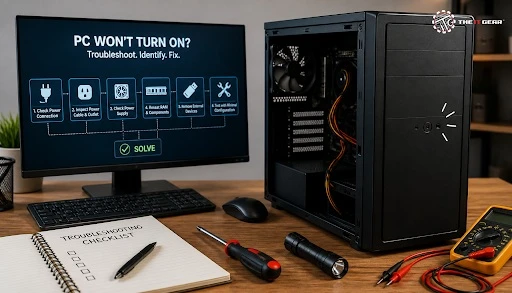
Unclogging the blocked drain first: you can’t fix what you haven’t diagnosed, so the first pass is usually simply stripping the machine to the basics. If you do what the various big OEMs recommend for self-support, it’s striking how similar the advice is: pull attached devices, restart, do a hard reset, drain remaining power, then consider more aggressive options.
1. Unplug all peripherals except the power and monitor. Unplug USB drives, printers, docks, and card readers. Windows checks to see if they’re present during startup, and one stuck device can hold up the entire process.
2. Hard reset and drain flea power. Turn off, unplug the power adaptor, press and hold the power button for 20–30 seconds, then reconnect and power on. The charging state is behind many a PC not booting.
3. Try interrupting startup 3 or 4 times. Power on and off the computer during the logo; Windows will interpret each failed boot attempt and then open Automatic Repair or Windows Recovery Environment.
4. Open BIOS or UEFI and look at the boot order and the drives detected. If the drive or SSD is missing from the list, the problem isn’t Windows, but hardware.
5. Boot to Safe Mode from the recovery menu. If Windows runs fine here, then a driver or startup app is the cause of the computer not booting state.
All these steps are non-destructive, and collectively they address the current panic while preserving your data. If the steps above feel risky — or the machine still won’t boot — a computer repair service can run the same checks and preserve your data.
It isn’t power but a POST error. If your fans spin and LEDs light but you get nothing on the screen, your machine is having a POST failure before loading Windows. That suggests memory, video output, or firmware failure rather than an OS that’s gone rotten. Plus, many boards will flash beep codes or a debug LED to tell you which part failed.
Start with the cheapest checks: reseat the RAM modules, confirm the monitor is on the right input and cable, and test with a single memory stick. If the PC has never booted at all, treat it as a first-boot problem and work from BIOS error messages rather than recovery tools. Getting this distinction right saves hours, because reinstalling Windows never repairs a memory or display fault.
The black screen without POST is the one scenario that recovery tools cannot help with, because the recovery environment is located on a drive you cannot access. Check the display and memory first before assuming the motherboard is dead.
Windows 10 Not Booting Black Screen — What to Check First
If the machine boots again into BIOS, then the black screen is just a normal boot failure that you can fix from Windows.
What you use first isn’t as crucial as the order in which you use them when you recover. Microsoft states that Startup Repair is the go-to first-line response to startup trouble that can also help you dig a little deeper into the root cause. Don’t move on to System Restore and reinstallation too early, since they take time and, in one case, can cost you data.
1. Run Startup Repair from Troubleshoot > Advanced options. This runs an automated scan of boot records and system files.
2. Uninstall the latest update if the failure started immediately after an update. You can roll back to the previous update using the same menu.
3. Try System Restore to undo a recent driver or update change that broke startup.
4. Open Command Prompt and type `bootrec /fixmbr`, `bootrec /fixboot`, and `bootrec /rebuildbcd` when the Boot Manager itself is damaged.
5. Boot from rescue media like Hiren's Boot CD PE — which you may need to build if the image is beyond recovery — so you can run System Restore offline.
Computer Won't Boot Windows 11 — What's Different?
Windows 11 introduces two additional obstacles. First, BitLocker may require a recovery key after several unsuccessful boot attempts, so obtain that key beforehand. Second, UEFI-only boot with Secure Boot means the boot order must be configured properly, and legacy CSM options are not available. The repair process itself — Startup Repair, uninstalling updates, System Restore, Safe Mode — remains unchanged.
Both editions reward patience: your fix is much more likely to be a repair than a new install.
Quick Glance at the Fix Order for a PC That Won't Boot
Most boot failures result from configuration issues or corruption, and the steps above resolve most cases without data loss. If troubleshooting reveals a failing SSD, a faulty RAM module, or a depleted CMOS battery, The IT Gear carries replacement parts, bootable USB drives, and accessories, allowing a PC not booting issue to be addressed with a single order. For persistent boot problems, consider booking a computer repair service.
How do I fix my Windows computer that won't boot without installation media?
Begin the startup recovery process by interrupting startup three to four times in a row to bring up Automatic Repair. It will start Windows Recovery Environment from the recovery partition on your internal drive, so you can access Startup Repair, System Restore, and Command Prompt.
Can a broken HDD or RAM prevent a PC from booting?
Yes. If BIOS doesn’t detect the HDD or the machine beeps and hangs before it reaches the logo, it is a hardware issue. Reseating the RAM and trying an alternative drive confirms this quickly.
Will reinstalling Windows fix a boot failure?
Only if the problem is software-related. It offers no assistance if the drive is dying, the RAM isn’t working, or your boot order is incorrect — so repair should be the first course of action.





#No. 9, 5th Floor, Max City Center, T. P Lane, Sadar Patrappa Road, Bengaluru - 560002 (Karnataka)