





Select a category

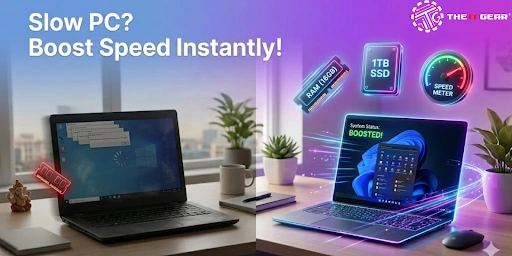
Stuck waiting forever for documents to load, stuck with choppy camera meetings, or sudden freezes when timing matters most? It happens often. Across India, countless families depend on one shared desktop - juggling jobs, homework lessons, movies - all on the same device. When it drags, everything slows down too.
Here's what helps - small fixes make big differences, even swapping out parts thoughtfully. Well look into cleaning up clutter, checking system health, upgrading components wisely - and yes, places like The IT Gear might just give old machines fresh life.
The real fix isn’t magic, it’s methodical. Speed returns when basics get attention first. These steps pop up again and again in repair guides. Not flashy - just functional.
Start here: shut off extra programs that launch automatically. Open Task Manager, then click the Startup section. Pick any app you do not use right at startup - maybe a torrent tool, print utility, or file sync helper - hold it down with a right-click, choose Disable. Doing just this might drop your start-up duration by fifty percent.
Even small tweaks can make a difference when it comes to speed. When apps drag, sorting out basic glitches often brings things back on track. After trying these, if performance stays poor, look into more thorough system checks or consider better components inside the machine.
What Causes slow PC Performance? Start by finding what’s actually slowing things down before buying anything new. When you open Task Manager, head straight to the Performance tab - it shows everything clearly.
1 - Start up Task Manager, choose More details when prompted, head over to the Performance section. Real-time visuals pop up showing CPU Memory Disk, along with Network activity. As you browse, load software, or run a clip, keep an eye on those charts. Their behavior shifts the moment you interact with something.
2 - Spikes near 100%? Could be hidden malware running wild. Sometimes it's just your antivirus going full throttle. Other times, blame fifty open tabs dragging things down.
3 - When memory hits over 80%, it often means your system is asking for more RAM. This shows up clearly when running browsers like Chrome or Edge. Heavy programs for design tend to push that limit even faster.
4 - Spinning too hard, old HDDs often hit full disk use. Swap in an SSD - suddenly everything moves faster.
Start by checking if your device runs slow after cleaning junk files. If it still lags, maybe more RAM helps instead of just updating apps. Some notice big gains when swapping an old drive for an SSD. Others save cash by skipping hardware swaps that won’t fix core issues. When budgets are tight, knowing what actually works matters most.
Free Up Disk Space with Disk Cleanup
Start by typing Disk Cleanup into the Windows search box. Pick your C drive - the one running Windows - for cleanup. This utility checks how much storage could be freed when removing temp files, items from the Recycle Bin, along with Delivery Optimization data. That main drive tends to collect update leftovers and cache buildup over time - clearing them typically brings back between 5 and 15 gigabytes while making systems feel quicker.
Run a Full Malware Scan
Most of the time, sneaky programs such as crypto-mining scripts or intrusive ads operate without warning, hogging processor power. Windows comes with its own shield - Windows Security - included with versions 10 and 11, though alternatives exist, including tools like Malwarebytes that are both reliable and cost nothing. Running a complete check could stretch close to sixty minutes, yet skipping it isn’t wise. When the computers cooling fan spins hard while doing nothing, odds lean toward hidden infections lurking beneath.
Update Windows and Device Drivers
Stuttering happens when old drivers stick around - graphics, network, or storage types most often. Head into Settings first, then click on “Windows Update” to pull down what is waiting. Look under “Optional updates” too, since that is where driver upgrades hide sometimes. Performance tweaks arrive through these updates, also protection against new threats. Missing them leaves gaps, and then both speed and safety suffer.
Once those software tasks finish, power cycle the machine once more. When performance still feels slow, it could mean the equipment itself is holding things back.
When to upgrade pc parts like ram and ssd ? Older machines often hit limits that no tweak can fix. When the computer passed its third birthday - or started life cheap - hardware changes bring real speed. Swapping parts beats software tricks every time. The boost comes from inside: faster storage, extra memory, better processors.
|
Upgrade |
What It Fixes | Approx. Cost (INR) | Difficulty |
| Add more RAM | Slow multitasking, browser lag, high memory usage (above 80%) | ₹2,500 – ₹6,000 (8GB to 16GB) | Easy |
| Replace HDD with SSD | Very slow boot times, apps taking minutes to open, 100% disk usage | ₹3,000 – ₹8,000 (256GB to 1TB) | Medium |
| Upgrade graphics card (desktop only) | Lag in games, video editing, or CAD | ₹10,000 – ₹30,000+ | Medium/Hard |
Tips to improve PC performance through upgrades:
Start by adding more RAM to your computer. Most people working at home or in an office will notice a real difference going from 4 gigabytes to 8 - or doubling up to 16. This change means running two dozen browser tabs at once, yet still feeling smooth. The boost costs little but gives back a lot in daily use.
Most older computers run slower because they rely on old-style drives. Try moving your system to flash storage instead. That change cuts startup time sharply - now it takes less than twenty seconds compared to two or three minutes before. Everything responds quicker once the switch is done.
Start by opening Task Manager to see what's slowing things down. When memory usage stays high, more RAM could help. Look at disk activity - if it’s stuck near full, switch to an SSD. Should the processor run nonstop, think about replacing the CPU. That kind of change might require a different motherboard. For that step, talking to someone who knows hardware makes sense.
Start by checking what your motherboard supports before picking new components. Take memory - today’s systems typically run on either DDR4 or the newer DDR5 kind. Storage? You’ll usually see solid state drives as 2.5-inch models using SATA, or the smaller M.2 type that plugs directly into the board.
1 - Start fresh by rebooting the machine before grabbing system updates. After it powers back up, pull down the latest patches along with driver upgrades.
2 - Launch Task Manager - spot what's eating up CPU, memory, or disk space. One thing slows everything - it’s hiding right there among the processes. Look closely. That spike in usage? It tells a story of strain. See how each app fights for power. A single name stands out - blame rests there.
3 - Turning off apps that launch automatically. A cleaner drive begins when those extras stop loading at boot. Instead of waiting through delays, wipe temporary files with Disk Cleanup right after.
4 - Check your system for malicious software, then take out any add-ons you do not use anymore.
5 - Got slow gear? Try fresh RAM or swap that old hard drive for an SSD. Real parts come from The IT Gear - no fakes, just what works. Speed jumps happen when metal meets smart upgrades.
6 - Should the computer still feel sluggish once those five fixes are done, trying a clean install of Windows might help - or get advice from someone who knows what they’re doing. By stage four or five, plenty of people across India notice things running much better.
Most times, a sluggish machine won’t force you into a fresh purchase. Try simple steps like rebooting first, clearing out clutter on the drive helps too. Turn off apps that load at boot - this cuts down wait time. Malware checks catch hidden hogs using resources behind the scenes.
If speed still lags, old guts might be holding things back. More memory gives breathing room when multitasking gets heavy. Swapping in a solid state drive changes how fast files wake up. Parts matter - mismatched upgrades waste effort and cash. That is where The IT Gear stands apart across India - real compatibility, honest cost.
How do I make my PC run faster without spending money?
Restarting regularly, disabling startup apps, running Disk Cleanup, uninstalling unused software, and changing power settings to "High performance" (Control Panel > Power Options) are the ways you can speed up your PC without spending a penny. Also, keep the number of open browser tabs to a minimum and delete those unnecessary extensions.
Why is my computer running slow all of a sudden?
It may be that your PC was slowed down after a Windows update, new driver or it was infected with malware. Use System Restore to rollback to before the issue started or perform a full antivirus scan. Also, make sure to check Task Manager for any unknown process that is using high CPU.
What is the difference between a slow PC on Windows 10 vs Windows 11?
Windows 11 has new features such as Widgets, VirtualizationBased Security (VBS), and more animations which can slow down old hardware. Disabling visual effects and VBS would give you some speed improvement. Anyway, the basic remedies (restart, Task Manager, Disk Cleanup, malware scan) are the same on both OS versions.
How to clean up a computer to run faster on Windows 10?
You can plan to use "Storage Sense" to get rid of temporary files and old downloads automatically. Besides, remove programs you do not use manually through the Control Panel and clear browsing history now and then.
My PC is slow and unresponsive – how do I force a restart?
Long press the power button for 10-15 seconds until the computer is totally turned off. Turn it on again. If the issue is still there, restart in Safe Mode (F8 or Shift + Restart pressed) and use chkdsk /f from Command Prompt to check for hard drive faults.
Is upgrading RAM or SSD better for a slow PC?
If the Disk Usage is almost always 100% in the Task Manager, an SSD will be the most significant performance enhancement. However, if Memory usage is above 80% during multitasking, adding RAM will be more effective. For the majority of old PCs, dual upgrade (first an SSD, then RAM) will result in a complete transformation of the PC.





#No. 9, 5th Floor, Max City Center, T. P Lane, Sadar Patrappa Road, Bengaluru - 560002 (Karnataka)