








Select a category

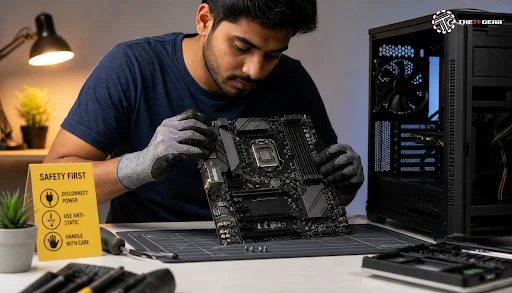
A PC motherboard upgrade is one of the most rewarding yet intimidating hardware challenges someone can take on. Since the motherboard is one of the main components of a system, swapping it means that one will have to take apart the whole device, check compatibility with different parts, and tackle the Windows activation hurdle. Still, if you plan carefully, you'll be able to change the motherboard safely and unlock support for newer CPUs, faster RAM, and modern technologies like PCIe 5.0.
A motherboard upgrade for a PC involves getting rid of your current board and swapping it with a new one that is compatible with your chosen CPU, RAM, and storage components. Contrary to an ordinary GPU change, such an upgrade disrupts your system configuration.
This means, the board that you get should be compatible with the CPU type you have (like LGA 1700 for Intel or AM5 for AMD), support the right RAM generation (DDR4/DDR5), and of course, match the dimensions of your case as determined by its form factor (whether it's ATX, micro-ATX, or mini-ITX). Naturally, it also involves reinstalling all drivers, Windows activation, and careful reattachment of each cable.
Sure, a motherboard upgrade without other changes is totally doable, though you should be well aware of compatibility changes across different components. Other components like the GPU, storage devices, and power supply may remain intact if the connectors are the same.
However, an updated socket indicates that the existing CPU cannot be placed in the new socket. The situation worsens if you choose a DDR5-only board, as your old DDR4 RAM is rendered useless. Such a motherboard-only upgrade is the solution for cases where the existing board does not work, has not enough M.2 slots, or has no possibility to support the target CPU.
You should consider a motherboard upgrade only when the board limits the overall system performance. Such examples include a new CPU being available with a different socket (motherboard has to be changed anyway), or when you need more PCIe 5.0 lanes, USB4 ports, or a better VRM for the processor that you plan to install. On the contrary, if you have a board that already allows you to run the CPU and RAM that you plan to use, there is actually no need to upgrade, meaning the extra work and costs are not justified.
"Do I need to upgrade my motherboard for a new CPU" is a repeated question which depends only on the socket and chipset compatibility. If the new CPU uses the same socket, chances are that the board needs only a BIOS update. If you're on a tight budget, a GPU or RAM upgrade often gives much better value for gaming and the productivity increases.
Changing the motherboard of your computer is a task that calls for a lot of patience and by following logical sequence. If you adhere to these instructions, the chances of the motherboard getting damaged by static, connectors breaking due to user error, and the computer not working properly or crashing after startup are generally reduced.
Step 1: Pre-Upgrade Preparation
You must back up your important files to the cloud, external drives, or even another PC before the work is started. By linking your Windows license key to your Microsoft account, ensure that reactivation after the motherboard change will be hassle-free.
Also, you should download chipset, LAN, and audio drivers for the new motherboard onto a USB drive. Finally, wearing anti-static wrist straps and having a non-carpeted workspace prevents electrostatic discharge, is generally advised on forums and in the Reddit r/buildapc thread.
Step 2: Removing the Old Motherboard
After unplugging, press the power button once to make the residual electricity go away. Then, pull out all the external devices from the motherboard such as graphics card, internal drives, RAM, and CPU coolers. Every cable can be easily mixed, as there is so much similarity between front panel header cables, USB sockets, SATA cables, and audio cables. So, it is best to tag them before removing them to save time. To safeguard the CPU socket, you should take off the CPU heatsink with care so that no pins are bent and no board parts are damaged.
Step 3: Installing the New Motherboard
The best strategy is to mount the CPU, RAM, and M.2 SSD onto the new motherboard first, before securing the new motherboard into the case. It is recommended to verify if the location of the standoffs aligns with new motherboard holes, since the wrong standoffs may result in the motherboard getting shorted.
After inserting the IO cover, lower the board into the case and fasten it with the required set of screws only. Once that is done, you need to fit the main 24-pin ATX power, 8-pin CPU power, all the SATA lines, front panel interface, USB, and case fan cables.
Step 4: First Boot and Post-Upgrade Setup
Turn on the power, and the computer will perform POST automatically. If no display is present, it means that a reseating of the RAM is needed after a thorough rechecking of all power connections.
The first step is to activate the XMP/EXPO profiles in the BIOS so the memory runs at its correct speed after the update. The system is then running Windows and you are supposed to go to the manufacturer website to get chipset and different driver software.
If a motherboard swap has been completed, it is best to reinstall Windows to minimize possible conflicts and to be safe with the drivers and system in a running state. That's the most reliable approach.
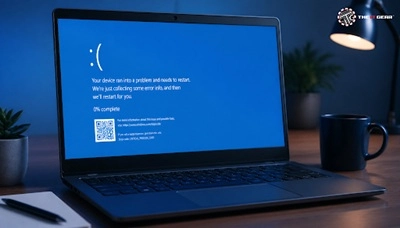
Yes, it is possible. However, it is very tricky to change the motherboard and CPU together without doing a fresh Windows 10 installation. After installing the new components, there are two main problems that may arise - either nothing works or there are very serious boot issues. In the worst situation, the Blue screen of death flashes on the screen as chipsets and ACPI drivers get out of sync with the computer system.
It is better to switch your storage controller driver to a generic Microsoft driver before carrying out the motherboard change. Also, uninstall antivirus packages and old GPU drivers. Lastly, be prepared to have problems in activating Windows. Performing a clean installation remains the most reliable and stable route.
After doing a motherboard change, the contents of your hard disk drive (HDD) and solid state drive (SSD) are still there, since the board holds only the processor, memory, and motherboard chipsets. However, physical dismantling always carries risks, and the only way to prevent data loss is to ensure that you have complete backup beforehand.
In any case, if you reinstall Windows, the OS drive will be formatted. So it's advised that you firstly relocate the critical files to an additional storage medium or cloud services. Also, make sure that the BIOS settings for your motherboard are set to the correct mode (AHCI or RAID), so your storage drives boot smoothly without errors.
A laptop's motherboard replacement is nothing like a desktop's motherboard swap. Laptop motherboards are not interchangeable between models, and usually features CPU and GPU within a single motherboard, which makes the upgrade almost impossible.
Replacement is only necessary when a faulty motherboard is causing problems, and it is difficult to locate a replacement with the same specifications. Laptop users seeking performance enhancements will often increase the RAM and add more storage, as these approaches are more effective as well as cheaper.
Generally, you can upgrade an Intel i5 processor to an Intel i7 as long as both CPUs share the same socket and chipset. For instance, both the i5-13600K and i7-13700K use the LGA 1700 sockets. A simple BIOS update might be all you need.
Still, the VRM quality of the motherboard will decide whether a higher performance i7 can run at its full potential or the motherboard may throttle the CPU for lower voltage and higher temperature.
You should also confirm whether your CPU cooler and PSU will meet its sustained power requirements. In the case of AMD platforms such as AM4 or AM5, the socket platform and the memory controller allow such cross-generation upgrade possibilities. This makes them popular among Indian PC builders.

It is a very gratifying experience doing a PC upgrade, especially the motherboard, as it makes it possible to fit the latest CPU, DDR5 memory and blazingly fast storage devices.
The moment you are ready, explore the selection of The IT Gear's motherboards, processors, RAM, and power supplies from top brands such as ASUS, MSI, Gigabyte, and ASRock, assuring that you will be offered with great discounts plus reliable deliveries anywhere in India.
How long is the lifespan of a motherboard?
The life of a motherboard is usually five to ten years under normal conditions. The main factors of failure are breakdown of capacitors and wear down of VRMs through heavy overclocking or physical damages. Many boards are replaced not because they are physically broken down, but because they can't accommodate newer socket types and memory standards. They are obsolete even though the components still seem good and may have a life span in excess of ten years.
How to upgrade your motherboard safely on Windows 10?
Tips for upgrading motherboard:
Can you change a motherboard without losing data?
Yes. Your files are safe on the drives since the motherboard is simply changing the platform on which they're running. But, be sure to back up important files beforehand, mainly if you're going to format your OS drive to clean-install Windows.





#No. 9, 5th Floor, Max City Center, T. P Lane, Sadar Patrappa Road, Bengaluru - 560002 (Karnataka)






Looks like you haven't added anything yet. Explore our builds, components and gear.
Continue shopping